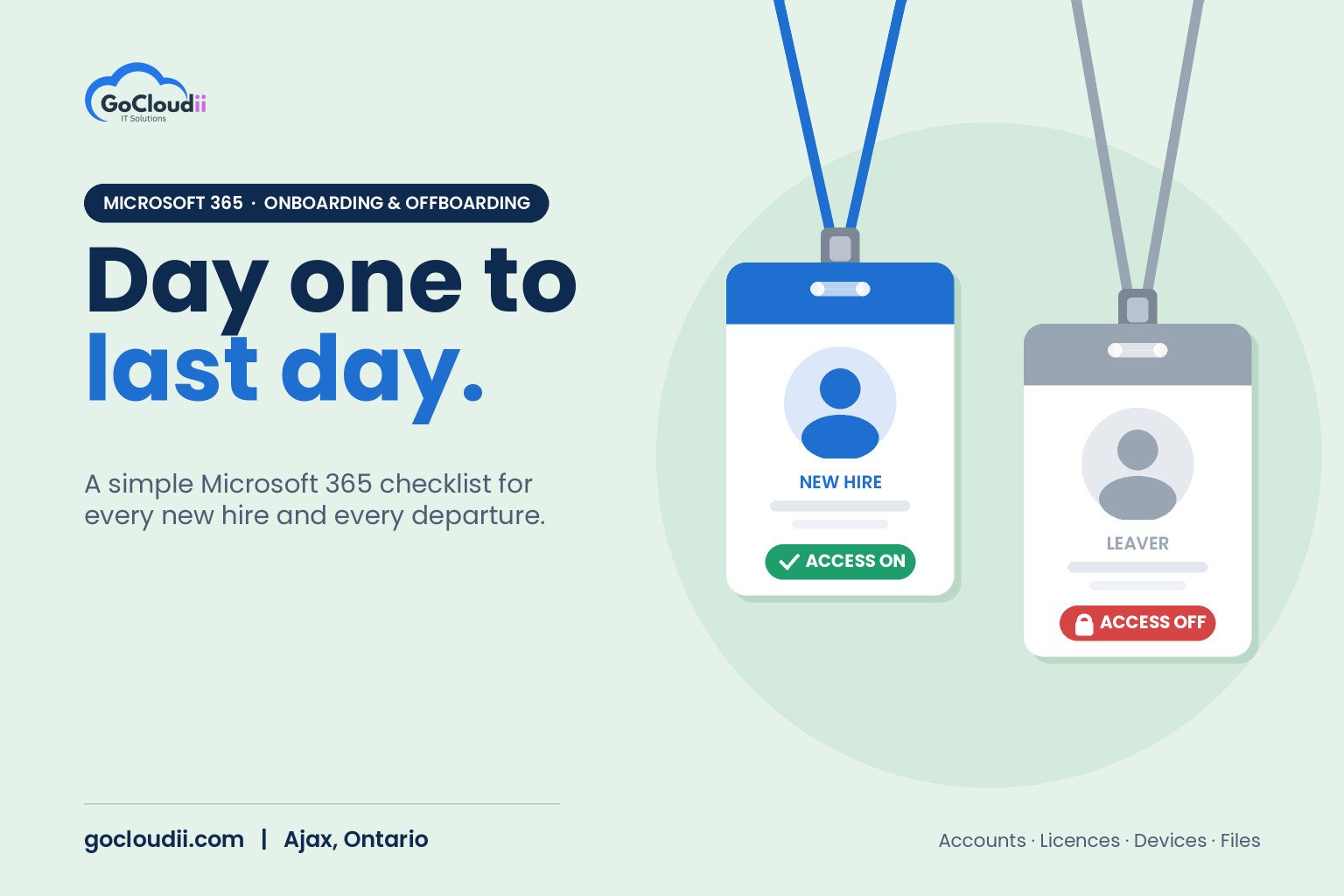
Every time someone joins or leaves your business, their Microsoft 365 account needs attention. Set it up well and a new hire is productive on day one. Close it properly and a former employee can no longer reach client email, shared files or company devices. Many small businesses handle this from memory, which is how licences get wasted, files go missing and old accounts stay open for months. This guide gives you a practical Microsoft 365 onboarding and offboarding checklist for Ontario businesses, so every start and every departure follows the same safe steps.
Why a consistent process matters
Joiners and leavers are routine, but small mistakes add up:
- Security gaps. An active account for a former employee is an open door, especially if it has no multi-factor authentication.
- Lost data. Email and OneDrive files can be deleted along with an account if nobody moves them first.
- Wasted licences. Paying for accounts nobody uses adds up over a year.
- Slow starts. New staff waiting days for access, equipment or training cost the business time.
- Client trust. Clients expect their information to be handled carefully when your team changes.
A written checklist turns each change into a few minutes of predictable work.
Microsoft 365 onboarding checklist for Ontario businesses
Before day one
- Confirm the role. Agree on the job title, manager, department and which systems the person needs.
- Choose the licence. Match the plan to the role. Our comparison of Microsoft 365 Business Premium vs Standard can help.
- Create the account. Use a consistent username format and fill in name, title, department and manager so the directory stays useful.
- Add groups and access. Add the user to the right Teams, SharePoint sites, shared mailboxes and distribution lists. Using groups rather than one-off permissions keeps access tidy.
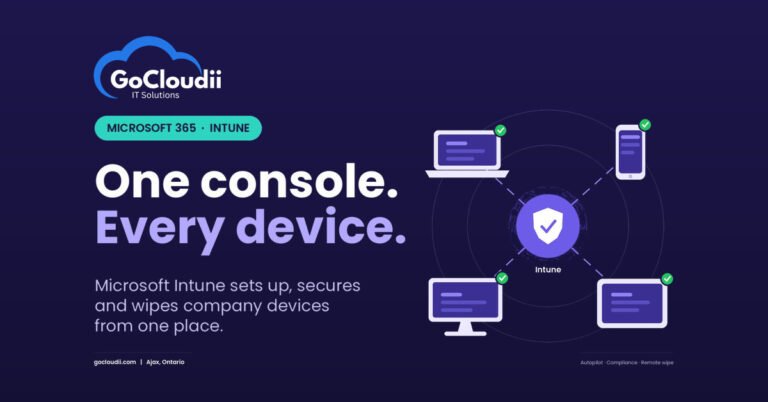
- Prepare the device. Enrol the laptop or phone in Microsoft Intune so security settings, apps and updates apply automatically.
On day one
- Set up multi-factor authentication. Have the user register MFA, ideally with an authenticator app, before they start working with company data.
- Sign in to the core apps. Confirm Outlook, Teams, OneDrive and any line-of-business apps work on each device.
- Explain where files belong. Show the difference between personal OneDrive files and shared team files in SharePoint or Teams.
- Cover security basics. Share your password rules, how to report a suspicious email and who to call for help.
In the first month
- Review access. Check with the manager that the person has what they need and nothing extra.
- Book security awareness training. A short session early on builds good habits. Our cybersecurity services include staff training.
Microsoft 365 offboarding checklist
On the last day, or immediately for an unplanned departure
- Block sign-in. Stop the account from signing in rather than deleting it straight away.
- Revoke active sessions. Sign the user out of all devices and apps, and reset the password.
- Remove MFA methods and app access. Clear registered authentication methods and review any connected third-party apps.
- Secure devices. Collect company laptops and phones. For personal devices, use Intune to remove company data without touching personal content.
- Disable mail forwarding. Check for forwarding rules the user created, and remove them.
In the following days
- Handle email. Convert the mailbox to a shared mailbox so a manager can access it, or set an automatic reply that points clients to a new contact. A shared mailbox does not need its own licence in most cases, subject to Microsoft’s size limits.
- Transfer files. Give the manager access to the user’s OneDrive and move important files to SharePoint before the account is removed. By default, a deleted user’s OneDrive is kept for a limited time, so do this promptly.
- Update ownership. Reassign ownership of Teams, SharePoint sites, groups and shared calendars the person managed.
- Remove the licence. Free up the licence for the next hire or reduce your subscription count.
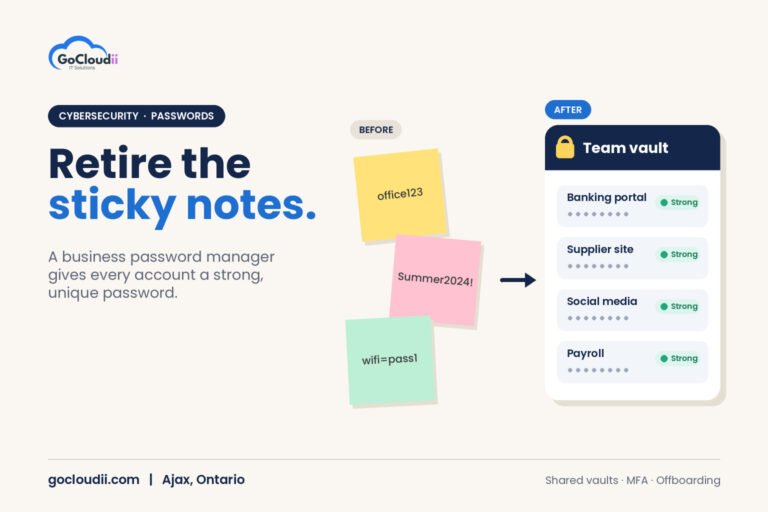
- Review shared credentials. Change any shared passwords or accounts the person knew, such as supplier portals or social media.
- Document it. Record what was done and when. This helps with audits, insurance questionnaires and future questions.
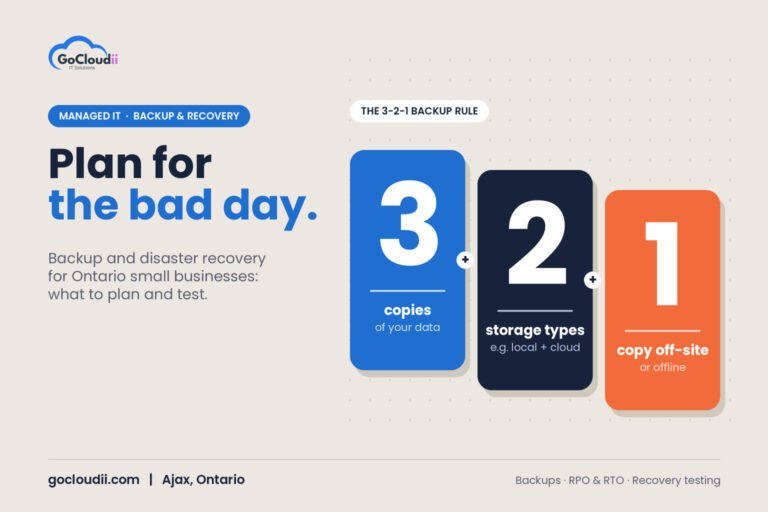
If you are unsure what data you need to keep, and for how long, get advice that reflects your industry and obligations. Our guide to why Microsoft 365 backup is important explains how backups help protect former employees’ data.
Make it easier with automation
Once the steps are agreed, much of the work can be standardized:
- Group-based licensing assigns the right licence when someone joins a department group
- Intune enrolment profiles set up devices with the same security settings every time
- Templates for Teams and SharePoint give new hires the same structure as their colleagues
- Regular access reviews help confirm that permissions are still needed
Our Microsoft 365 solutions can set these up so changes take minutes, not hours.
Frequently asked questions
Should we delete a former employee’s account right away?
Usually not. Blocking sign-in immediately protects the business, while keeping the account for a short time lets you move email and files first. Delete it once data has been preserved.
Can a manager read a former employee’s email?
Converting the mailbox to a shared mailbox or granting access is technically simple. Make sure your workplace policies and privacy obligations support it before doing so.
How often should we review user accounts?
Review accounts and licences at least quarterly. It is a quick way to find old accounts, unused licences and permissions that have built up over time.
Let GoCloudii handle joiners and leavers
GoCloudii manages Microsoft 365 for businesses in Ajax, Durham Region and across the GTA. Our managed IT services include onboarding and offboarding, device management and help desk support for a flat monthly fee per user. Contact us for a free consultation and a review of your current Microsoft 365 accounts and licences.