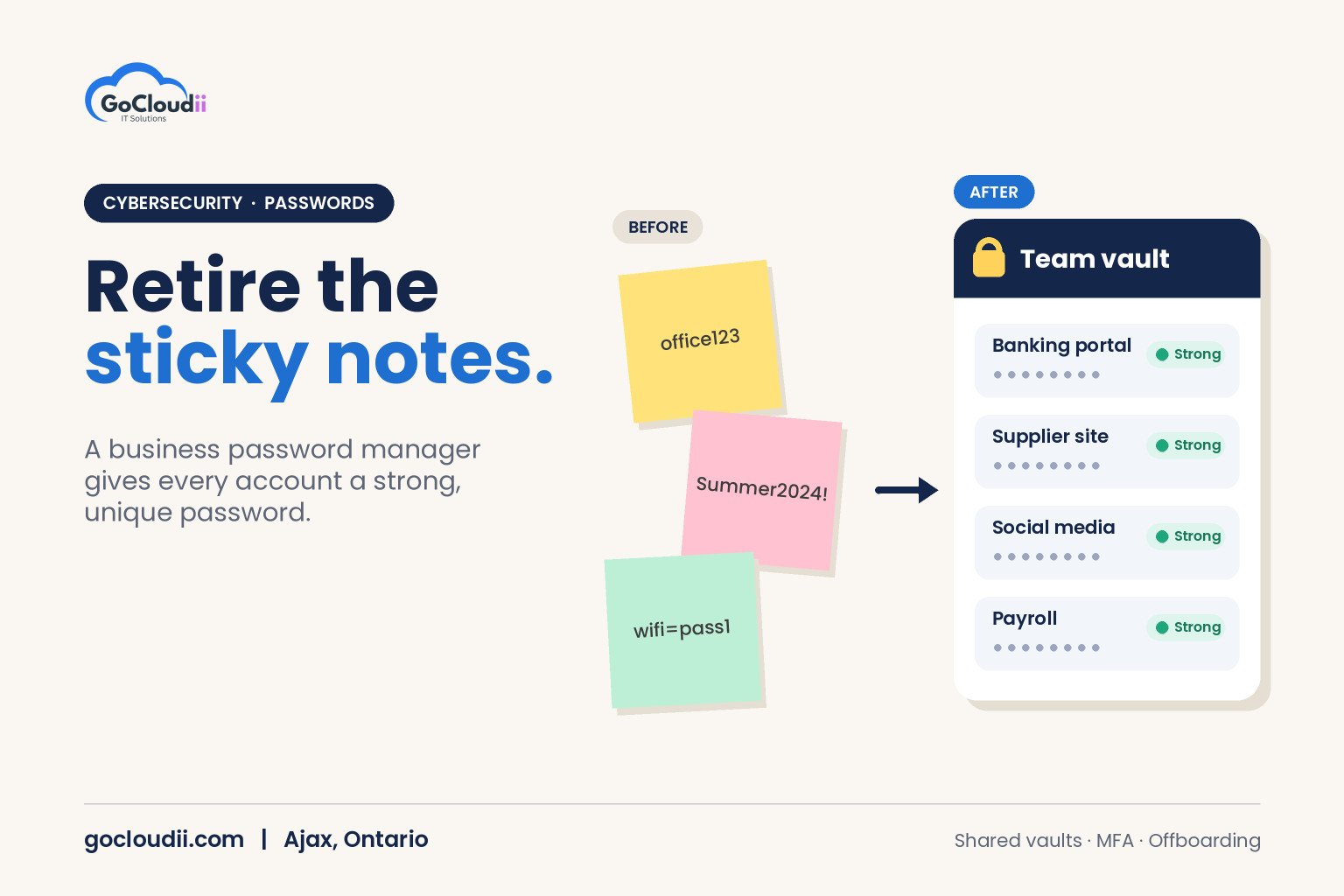
Sticky notes on monitors, a spreadsheet called “passwords”, the same login reused for banking, email and the office Wi-Fi. These habits are common in small offices, and they make an attacker’s job easy. When one reused password leaks in a breach elsewhere, criminals try it on every other service. A business password manager fixes this by giving every account a strong, unique password that staff never have to remember. This guide explains how to choose and roll out a password manager for small businesses in Ontario.
Why passwords are still a problem
Even with multi-factor authentication, passwords remain the first layer of protection for most accounts. The most common problems are:
- Reuse: one password used across many sites, so a single breach exposes several accounts
- Weak passwords: short, predictable passwords that are easy to guess
- Unsafe sharing: passwords sent by email, text or written down for colleagues
- No offboarding: former staff still know shared logins after they leave
A password manager addresses all four.
What a business password manager does
A password manager is an encrypted vault that stores logins and fills them in automatically. Business versions add features that personal ones usually do not:
- Strong password generation for every new account
- Shared vaults or folders so teams can share logins securely without seeing or sending the password in plain text
- An admin console to add users, manage permissions and remove access when someone leaves
- Security reports that flag weak, reused or exposed passwords
- Policy controls, such as requiring MFA to unlock the vault
- Integration with identity providers such as Microsoft Entra ID, offered by many products, so staff sign in with their work account
Well-known business options include Bitwarden, 1Password and Keeper. The right choice depends on your size, budget and existing tools.
Password manager for small businesses in Ontario: how to choose
Security design
Look for zero-knowledge encryption, which means the provider cannot read your stored passwords. Check that the vault can be protected with MFA and that the company publishes independent security audits.
Ease of use
If the tool is awkward, staff will go back to old habits. Test the browser extensions and mobile apps with a few employees before deciding.
Sharing and permissions
Make sure you can create shared collections for teams such as reception, finance or IT, and control who can view, edit or share each item.
Admin and recovery options
Confirm how administrators can recover access if an employee forgets their master password, and how quickly you can remove a departing employee.
Emergency and break-glass access
Plan for the day the owner or office manager is unavailable. Many business password managers offer emergency access or account recovery features so a trusted person can reach critical logins, such as the domain registrar, banking portal or Microsoft 365 admin account, when needed. Decide in advance who that person is and document the process.
Data location and privacy
If you handle sensitive client information, such as health or legal records, ask where data is stored and how the provider handles privacy. Get advice if your sector has specific obligations.
How to roll out a password manager
1. Start with leadership and IT
Have owners, managers and IT staff adopt it first. They hold the most sensitive access and can champion the change.
2. Organize shared vaults
Create collections for shared accounts such as suppliers, social media, banking portals and software logins. Move them out of spreadsheets and email, then delete the old copies.
3. Train staff
Show people how to save new logins, generate passwords and use autofill. Explain the master password rules clearly: long, unique and never reused or written down. Our guide to security awareness training covers how to make training stick.
4. Change weak and reused passwords
Use the security report to find weak or reused passwords and replace them, starting with email, banking, payroll and admin accounts.
5. Add it to onboarding and offboarding
New staff should get vault access on their first day. When someone leaves, remove their access and rotate any shared passwords they used. Our Microsoft 365 onboarding and offboarding checklist includes these steps.
Password managers and MFA work together
A password manager makes passwords strong and unique. Multi-factor authentication stops an attacker even if a password is stolen. Use both, especially for email, banking and administrator accounts. Our guide to multi-factor authentication for small businesses explains how to roll it out.
Frequently asked questions
Is it safe to keep all our passwords in one place?
A reputable password manager with strong encryption and MFA is far safer than reused passwords, spreadsheets or sticky notes. The vault is protected by a master password and a second factor.
What happens if the password manager company is breached?
With zero-knowledge encryption, stored passwords are encrypted with a key the provider does not have. That is why a strong, unique master password and MFA are essential.
Can we use the password feature built into our browser?
Browser password storage is better than nothing, but it usually lacks business features such as secure team sharing, admin control and offboarding. A dedicated business password manager is easier to manage across a team.
Strengthen your passwords with GoCloudii
GoCloudii helps businesses in Ajax, Durham Region and across the GTA improve account security. Our cybersecurity services cover MFA, endpoint protection and staff training, and our managed IT services and Microsoft 365 solutions keep accounts and devices managed day to day. Contact us for a free consultation about choosing and rolling out a password manager.