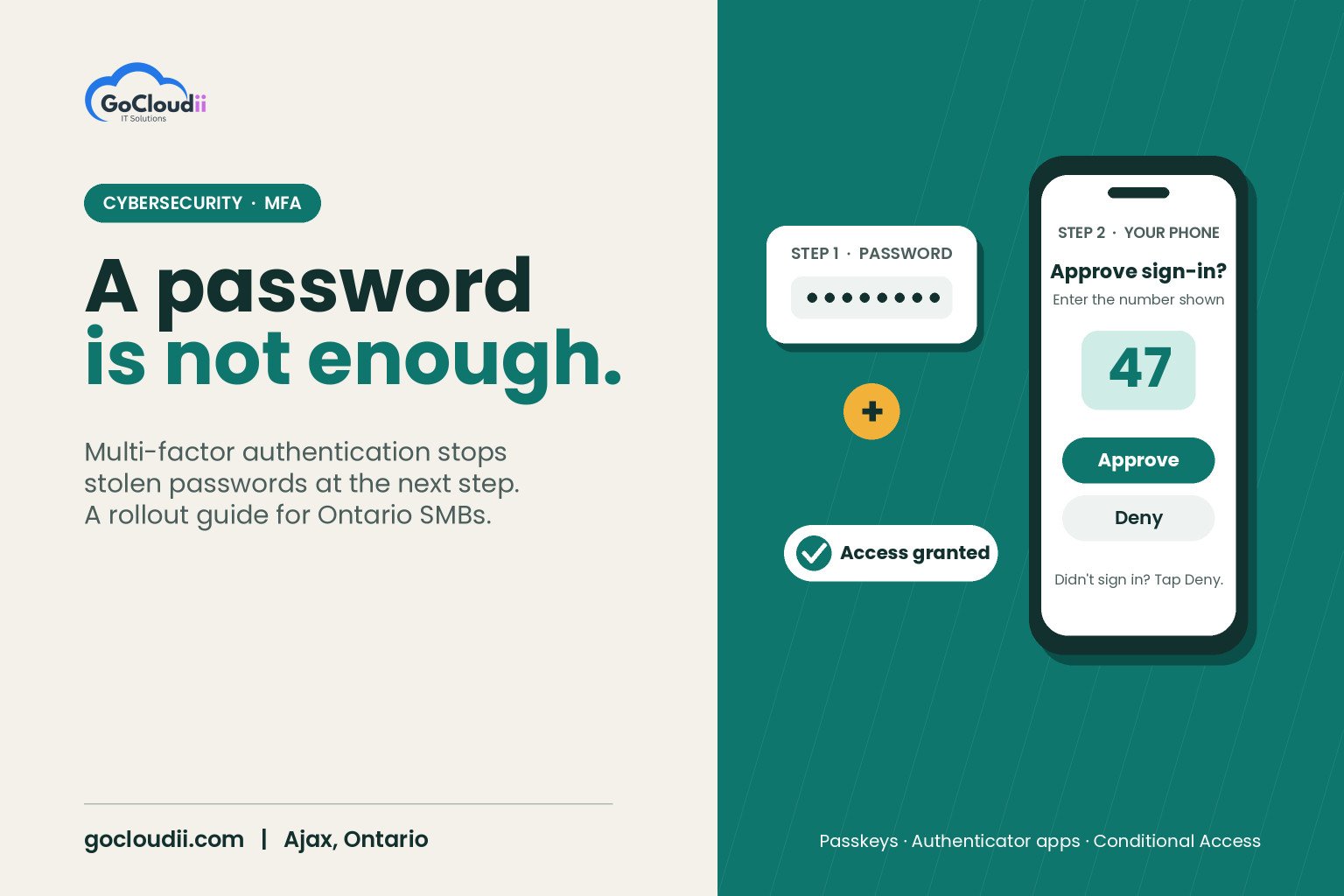
Stolen passwords are behind a large share of business account compromises. A password can be phished, guessed, reused from another breached site or bought online. Multi-factor authentication (MFA) adds a second check, such as an app approval or a security key, so a stolen password alone is not enough to get in. It is one of the most effective and affordable security steps any organization can take. This guide explains multi-factor authentication for small businesses in Ontario: which methods to use, where to turn it on and how to roll it out without frustrating your team.
What MFA is and why it matters
MFA asks for two or more types of proof before allowing a sign-in:
- Something you know, such as a password or PIN
- Something you have, such as a phone with an authenticator app or a hardware security key
- Something you are, such as a fingerprint or face recognition
When an attacker steals a password through a fake sign-in page, MFA can stop them at the next step. The Canadian Centre for Cyber Security recommends MFA as a core control for organizations of all sizes, and many cyber insurers now ask about it on applications and renewals.
Choosing the right MFA method
Not all MFA methods offer the same protection. From strongest to weakest:
Phishing-resistant methods
Passkeys and FIDO2 security keys are designed to resist fake sign-in pages. They work well for administrators, finance staff and anyone with access to sensitive data.
Authenticator app approvals
Apps such as Microsoft Authenticator send a sign-in request to the user’s phone. Features like number matching, where the user types a number shown on screen, help prevent people from approving requests they did not start.
One-time codes
Codes from an authenticator app are a reasonable option when push approvals are not available.
Text message and phone call codes
SMS and voice codes are better than no MFA, but they can be intercepted or redirected through SIM swapping. Use them only where nothing stronger is supported.
Multi-factor authentication for small businesses in Ontario: where to turn it on
Start with the accounts that would cause the most damage if compromised:
- Microsoft 365 or Google Workspace. Email is the key to password resets for almost everything else.
- Administrator accounts. Every admin account, internal or external, should use the strongest method available.
- Banking and payroll. Financial platforms are prime targets for fraud.
- Remote access. VPNs, remote desktop tools and cloud apps used from home.
- Line-of-business software. Practice management, accounting, CRM and patient or client portals.
- Social media and domain accounts. Losing control of your website domain or social pages can be costly and slow to recover.
How to roll out MFA in Microsoft 365
Use the right policy approach
Microsoft 365 offers security defaults, which turn on MFA for all users with minimal setup. Plans that include Microsoft Entra ID P1, such as Microsoft 365 Business Premium, add Conditional Access. This lets you require MFA based on the user, the app, the device or the location, and block risky sign-ins. Our comparison of Microsoft 365 Business Premium vs Standard explains which plans include it.
Block legacy authentication
Older email protocols that cannot use MFA can let attackers bypass it. Make sure legacy authentication is blocked.
Protect break-glass accounts
Keep one or two emergency administrator accounts with strong, securely stored credentials so you are never locked out of your own tenant.
Our Microsoft 365 solutions can configure these settings for your business.
Rolling out MFA without disrupting staff
1. Announce it early
Explain why MFA is coming, when it starts and what staff need to do. People accept change more easily when they understand the reason.
2. Prepare a simple guide
A one-page guide with screenshots for installing the authenticator app and registering a device saves many support calls.
3. Start with a pilot group
Enable MFA for IT, leadership and a few willing staff first. Fix any issues before the wider rollout.
4. Plan for shared and special accounts
Shared mailboxes, reception computers and service accounts need a plan. Convert shared logins to individual accounts wherever possible.
5. Have a lost-phone process
Decide how staff verify their identity and regain access if they lose or replace a phone. This is a common target for social engineering, so verification must be strict.
6. Train people to reject unexpected prompts
Attackers sometimes send repeated MFA requests hoping someone will approve one. Teach staff never to approve a prompt they did not start, and to report it immediately.
MFA is one layer, not the whole plan
MFA works best alongside endpoint protection, email filtering, backups and staff training. Tools such as Microsoft Defender for Business or Bitdefender GravityZone protect devices if malware gets through, and our comparison of Microsoft Defender vs Bitdefender can help you choose.
Frequently asked questions
Will MFA slow my team down?
Very little. With trusted devices and sensible policies, most people only see a prompt occasionally, such as on a new device or from an unusual location.
Do staff have to use their personal phones?
Many businesses use personal phones with an authenticator app, which does not give the company access to personal data. If that is a concern, hardware security keys are a good alternative.
Is MFA enough to stop all account takeovers?
No single control stops everything, but MFA blocks many common attacks that rely on stolen passwords. Phishing-resistant methods add stronger protection for high-risk accounts.
Get MFA right with GoCloudii
GoCloudii helps businesses in Ajax, Durham Region and across the GTA roll out MFA smoothly. Our cybersecurity services cover MFA, Conditional Access, endpoint protection and staff training, and our managed IT services support your team day to day. Contact us for a free consultation and an MFA review of your accounts.