AI assistants are now built into the tools most offices use every day. Microsoft 365 Copilot can draft emails in Outlook, summarize Teams meetings, turn notes into a Word document and help analyze a spreadsheet in Excel. For a busy dental office, law firm or non-profit, that sounds like hours saved every week. But Copilot works with your organization’s own files and email, so how well it works, and how safely, depends on how your Microsoft 365 environment is set up. This guide explains Microsoft 365 Copilot for small business owners in Ontario: what it does, what it needs, and how to prepare before you buy.
What Microsoft 365 Copilot actually does
Microsoft 365 Copilot is an AI assistant that works inside the Microsoft 365 apps your team already uses. Common uses include:
- Outlook: drafting replies, summarizing long email threads and suggesting next steps
- Teams: summarizing meetings, listing action items and catching up on chats you missed
- Word: creating first drafts from notes or existing files and rewriting content in a different tone
- Excel: explaining data, suggesting formulas and highlighting trends
- PowerPoint: building a draft presentation from a document
The key difference from a public chatbot is that Copilot can draw on your work content, such as emails, files, chats and calendar, to give answers grounded in your business.
Copilot Chat vs Microsoft 365 Copilot
Microsoft offers two related experiences, and it helps to know the difference before you budget:
- Microsoft 365 Copilot Chat is available to eligible Microsoft 365 business users at no extra cost. It provides secure AI chat for work, but it does not have full access to your organization’s files and email in the same way.
- Microsoft 365 Copilot is a paid add-on licence for business plans. It works inside the apps and draws on your work data to complete tasks.
Many small businesses start with Copilot Chat to build habits and test use cases, then add full Copilot licences for the people who will benefit most.
Microsoft 365 Copilot for small business: why permissions matter
Copilot only shows people content they already have permission to access. That sounds reassuring, and it is, but it also exposes a common problem. In many small businesses, files have been shared more widely than anyone realizes:
- Folders shared with “everyone in the organization” years ago
- Sharing links that let anyone with the link open a file
- Former staff accounts that still own important files
- HR, payroll or client records stored in general team sites
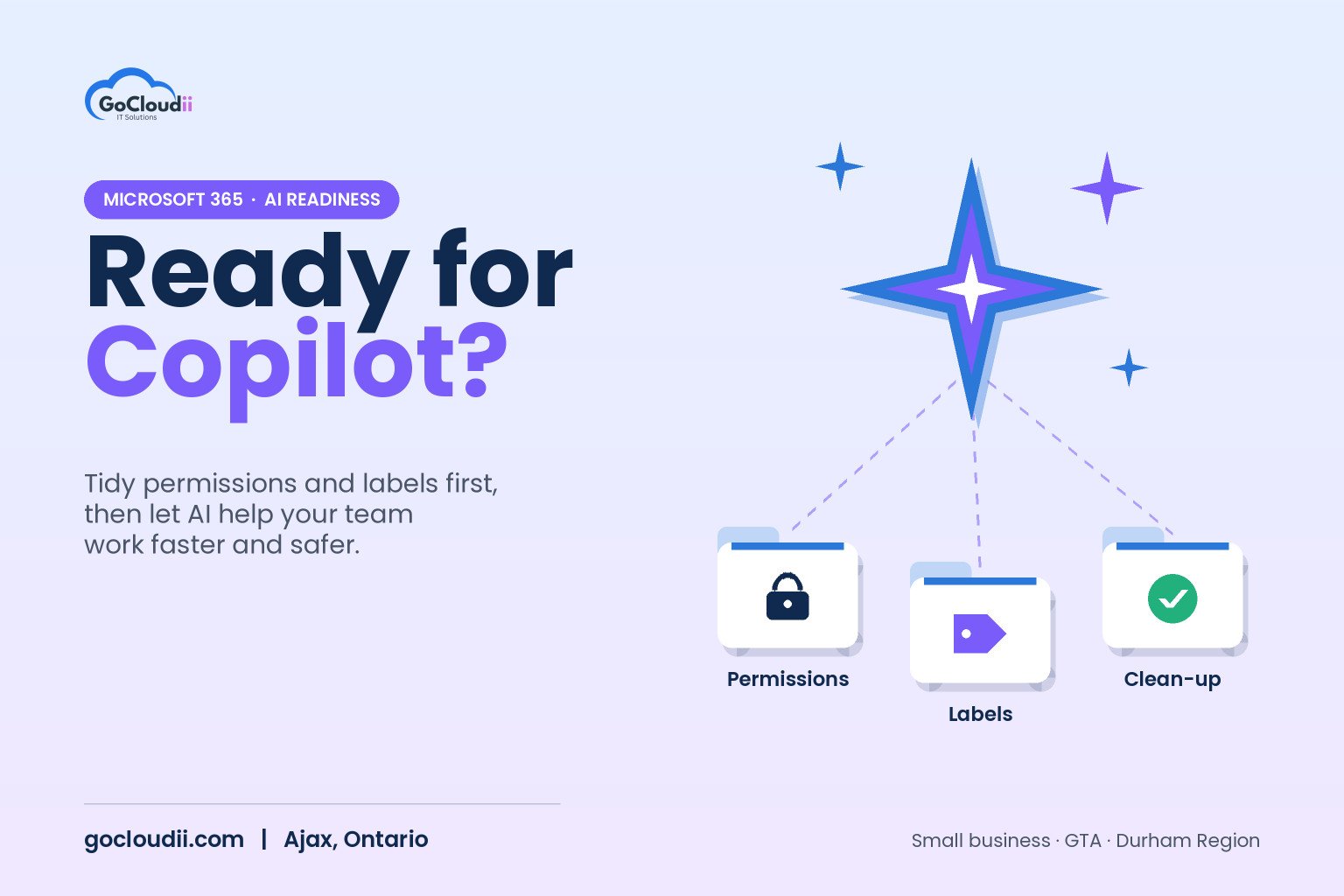
Before Copilot, these gaps were hidden because nobody went looking. With Copilot, a simple question such as “summarize recent salary discussions” could surface information to someone who technically had access but was never meant to see it. Fixing permissions first is the most important step in any Copilot rollout.
How to prepare your business for Copilot
1. Review sharing and permissions
Check who can access each SharePoint site, Teams channel and shared OneDrive folder. Remove “anyone” links where they are not needed and tighten access to sensitive areas such as finance, HR and client files. If your files still live on an old server, our guide to file server to SharePoint migration explains how to rebuild permissions properly as you move.
2. Clean up old and duplicate content
Copilot is only as good as the content it draws from. Archive outdated documents, remove duplicates and make sure the current version of key files is easy to find.
3. Label sensitive information
Sensitivity labels, available through Microsoft Purview in plans such as Business Premium, let you mark documents as confidential and control how they are shared. For health, legal or donor information, labels add a valuable layer of protection.
4. Secure every account
Turn on multi-factor authentication for every user, remove accounts for people who have left and review who has administrator rights. AI does not change the basics; it makes them more important.
5. Choose the right licences
Copilot is an add-on, so it sits on top of a Microsoft 365 business plan. Our comparison of Microsoft 365 Business Premium vs Standard can help you decide which base plan fits your security needs.
6. Start with a pilot group
Give Copilot to a small group first, such as an office manager, a team lead and someone who handles a lot of email. Agree on what you want to measure, such as time spent on meeting notes or first drafts, and review after a few weeks.
7. Set simple usage guidelines
Tell staff what Copilot can be used for, which information should never be entered into any AI tool outside Microsoft 365, and that a person must always review AI-generated content before it is sent to a client or patient.
Is Copilot right for your business?
Copilot tends to deliver the most value for people who spend much of their day in email, meetings and documents. It may be less useful for roles that rarely use Microsoft 365 apps. For regulated organizations such as clinics and law firms, the decision should also consider privacy obligations and professional rules. Microsoft states that Copilot respects your existing permissions and that prompts and responses are not used to train its foundation models, but your own configuration still determines who can see what.
Frequently asked questions
Does Copilot share our data with other companies?
Copilot works within your Microsoft 365 tenant and respects the permissions you have set. Microsoft states that your prompts, responses and organizational data are not used to train the underlying foundation models.
Do all staff need a Copilot licence?
No. Licences are assigned per user, so you can start with the people who will benefit most and expand later.
Can Copilot see files a user cannot open?
No. Copilot only uses content the signed-in user already has permission to access, which is why reviewing permissions before rollout is so important.
Get Copilot-ready with GoCloudii
GoCloudii helps businesses in Ajax, Durham Region and across the GTA prepare for AI safely. Our Microsoft 365 solutions cover permission reviews, SharePoint clean-up, sensitivity labels and licensing, while our cybersecurity services and managed IT services keep accounts and devices secure. Contact us for a free consultation and a Copilot readiness review.