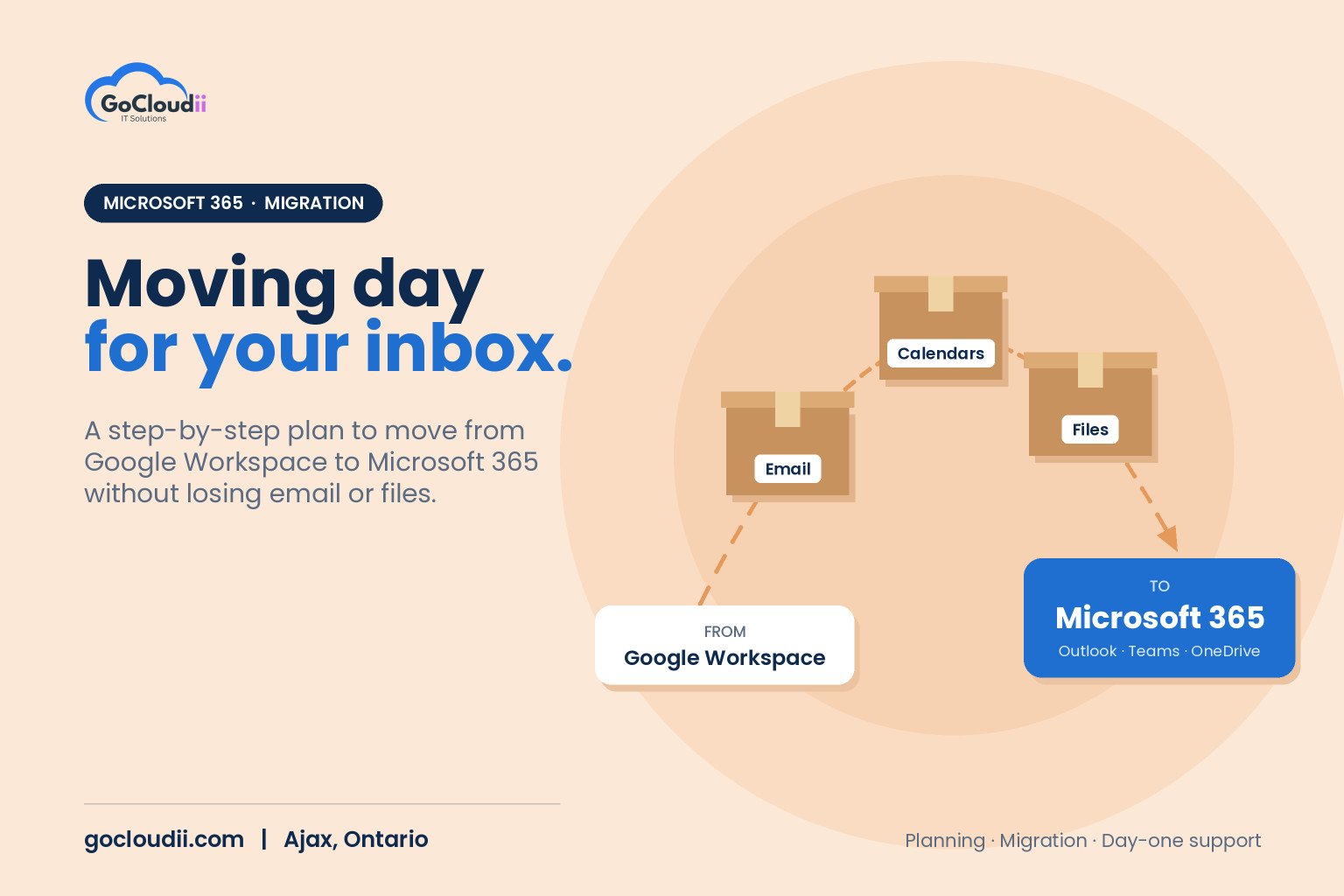
Many small businesses started on Google Workspace because it was quick to set up and familiar from personal Gmail. As the team grows, priorities change. Clients send Word and Excel files, staff want Teams for calls and chat, and the business needs stronger device management and security in one place. If that sounds familiar, you may be weighing a move to Microsoft 365. This guide explains how a Google Workspace to Microsoft 365 migration works for Ontario businesses, what moves across, and how to plan it so staff keep working without losing email or files.
Why businesses move from Google Workspace to Microsoft 365
Both platforms are capable, and Google Workspace remains a good fit for some teams. Common reasons GTA businesses switch include:
- Desktop Office apps. Many industries still exchange Word, Excel and PowerPoint files every day, and some plans include the full desktop apps.
- Teams in one place. Chat, video meetings, file collaboration and, with Teams Phone, business calling.
- Device and security management. Plans such as Business Premium include Microsoft Intune and Microsoft Defender for Business for managing laptops and phones and protecting them.
- Industry software. Practice management, accounting and line-of-business apps often integrate with Outlook and Microsoft 365.
- One vendor for identity. Microsoft Entra ID can handle sign-in, MFA and access across Microsoft and many third-party apps.
If you are still choosing a plan, our comparison of Microsoft 365 Business Premium vs Standard explains the key differences.
What moves across, and what needs extra planning
Email, calendars and contacts
Gmail mailboxes, calendars and contacts can be migrated into Exchange Online using Microsoft’s built-in migration tools or a third-party migration service. Labels in Gmail generally become folders in Outlook. Large mailboxes take longer, so they are usually moved in batches.
Google Drive files
Files in My Drive and shared drives can move to OneDrive and SharePoint. Microsoft provides Migration Manager for this, and third-party tools are also available. Google Docs, Sheets and Slides are typically converted to Word, Excel and PowerPoint during the move, so it is worth checking complex spreadsheets and formatting afterwards.
Sharing and permissions
Sharing in Google Drive does not map perfectly to SharePoint. Rather than copying years of messy sharing, use the move to design a clean structure: team sites for departments, clear owners, and limited external sharing. Our guide to file server to SharePoint migration covers the same principles.
Items that need a manual plan
- Google Forms, Sites and Apps Script automations
- Shared mailboxes and group addresses
- Third-party apps that sign in with Google
- Email signatures, filters and delegated access
- Chat history from Google Chat
List these early so nothing important is forgotten.
Google Workspace to Microsoft 365 migration in Ontario: step by step
1. Take inventory
Record every user, shared mailbox, group, shared drive, domain and connected app. Note mailbox and Drive sizes, and identify any data you can archive instead of moving.
2. Choose licences
Match each person to the right plan. Not everyone needs the same licence, and a quick review can avoid paying for features nobody uses.
3. Prepare Microsoft 365
Add and verify your domain, create users, set up multi-factor authentication and apply security settings before any data arrives. Starting secure is far easier than fixing it later.
4. Run a pilot
Move two or three users first. Check email, calendars, files and mobile access, and fix any surprises before the main migration.
5. Migrate in stages
Copy existing email and files in the background while staff keep working in Google Workspace. A final sync captures recent changes just before cut-over.
6. Switch mail flow
Update your domain’s MX and related DNS records so new email arrives in Microsoft 365. Update SPF, and set up DKIM and DMARC for the new platform. Our guide to SPF, DKIM and DMARC explains why these matter.
7. Support staff on day one
Set up Outlook, Teams and OneDrive on each computer and phone, share a one-page guide, and have help available on the first morning. A smooth first day sets the tone for the whole change.
8. Clean up
Keep Google Workspace active for a short overlap in case anything was missed, then export or archive what you need and cancel the old subscriptions.
Protecting data after the move
Microsoft 365 keeps your data available, but it is not the same as a backup you control. Add Microsoft 365 backup for mailboxes, OneDrive and SharePoint, as explained in why Microsoft 365 backup is important. If data location matters to your clients, see our guide to Microsoft 365 data residency in Canada.
Frequently asked questions
Will we lose any email during the migration?
With a staged migration and a final sync, existing email is copied before cut-over and new email starts arriving in Microsoft 365 once DNS is updated. A short overlap period protects against anything that arrives during the change.
How long does a migration take?
It depends on the number of users, mailbox and Drive sizes, and how much clean-up is needed. Small offices can often move over a weekend after a few days of preparation, while larger organizations plan in phases.
Can staff keep working during the move?
Yes. Data is copied in the background, so staff continue to use Google Workspace until the planned cut-over.
Plan your move with GoCloudii
GoCloudii helps businesses in Ajax, Durham Region and across the GTA move from Google Workspace to Microsoft 365 with minimal disruption. Our Microsoft 365 solutions cover planning, migration, SharePoint design and licensing, our cybersecurity services secure accounts and devices from day one, and our managed IT services support your team after the switch. Contact us for a free consultation and a migration plan for your business.