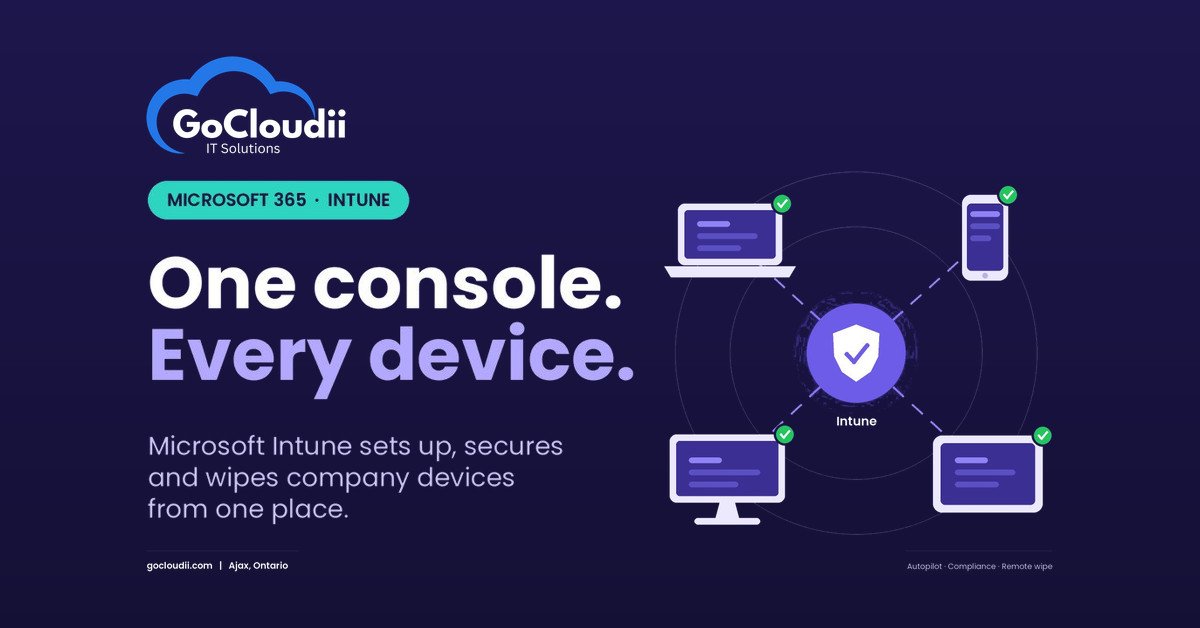
A laptop left in a taxi, a staff phone that still has client email on it after the employee has gone, a new hire waiting two days for a computer to be set up. Most small offices in Durham Region have lived through at least one of these. Microsoft Intune is the tool inside Microsoft 365 that handles them: it lets you set up, secure and, if needed, wipe company devices from one place. This guide explains how it works for offices with 5 to 20 staff, which Microsoft 365 plans include it and how to roll it out without disrupting your team.
What Microsoft Intune does
Intune is Microsoft’s tool for looking after company computers and phones. Instead of someone setting up each device by hand, you set the rules once in the Microsoft 365 admin centre and they apply wherever the device is: at the office, at home or on the road. It works with Windows PCs, Macs, iPhones and iPads, and Android phones and tablets.
In practical terms, Intune lets you:
- Set up new devices automatically with your apps, settings and security rules
- Enforce security basics such as encryption, screen locks and up-to-date operating systems
- Push and update apps like Microsoft 365 apps, Teams and the software your office already uses
- Protect company data on personal phones without taking control of the whole device
- Lock or wipe a lost or stolen device remotely
- See which devices meet your security rules and which do not
Is Intune included in my Microsoft 365 plan?
Intune is included in Microsoft 365 Business Premium, along with sign-in rules that can check a device before it opens company email, and Microsoft Defender for Business, which helps protect devices from threats. It is not included in Business Basic or Business Standard, although it can be added on its own. If you are comparing plans, our guide to Microsoft 365 Business Premium vs Standard explains the differences. For many small offices, looking after devices is one of the main reasons to choose Business Premium.
Microsoft Intune for small businesses in Durham Region: key features
Windows Autopilot for new computers
With Windows Autopilot, a new laptop can be shipped straight to an employee. They sign in with their work account, and the device configures itself with your apps, settings and security rules. This saves setup time and makes remote hiring much easier.
Rules for healthy devices
These rules, called compliance policies, define what a “healthy” device looks like, for example: encryption turned on, a PIN or password set, and a supported operating system version. Combined with sign-in rules (called Conditional Access), you can block devices that do not meet the requirements from reaching company email and files until they are fixed.
Settings applied to every device
You can apply the same settings across devices, such as turning on BitLocker encryption, setting Wi-Fi details, controlling when Windows updates install or restricting USB storage.
App protection for personal phones
Many staff prefer to read work email on their own phone. App protection rules protect company data inside apps like Outlook and Teams, for example by blocking copy and paste into personal apps or requiring a PIN, without managing the rest of the phone. If the person leaves, you can remove company data from those apps while leaving their photos and personal apps alone.
Remote lock and wipe
If a device is lost or stolen, you can lock it or wipe it from the admin centre. For company-owned devices, a full wipe resets the device. For personal devices, a selective wipe removes only company data.
Why this matters for small offices
If you run an accounting firm, a nonprofit, a law office, a dental or medical clinic, or a real estate or insurance office, you handle personal and confidential information. A lost laptop that is not encrypted can become a privacy problem. Intune helps you show that devices are encrypted, protected and kept up to date, which supports your privacy and security obligations. If your sector has specific requirements, get advice on what they mean for your devices.
It also makes staff changes cleaner. When someone joins, their device is ready quickly. When someone leaves, their access and company data can be removed. Our Microsoft 365 onboarding and offboarding checklist covers the account side of those steps.
How to roll out Intune in five steps
1. Take stock of your devices
List the computers, phones and tablets that access company data, and note which are company-owned and which are personal.
2. Decide your rules
Agree on minimum requirements: encryption, screen lock, a supported operating system and multi-factor authentication (a second step at sign-in, such as a code on your phone). Decide how personal phones will be handled. App protection is usually the least intrusive option.
3. Start with a pilot group
Enrol a few devices first, often leadership and whoever looks after IT. Test your rules and fix any issues before rolling out to everyone.
4. Enrol the rest of the team
Enrol company devices and set up app protection for personal phones. Explain to staff what is and is not managed, especially on personal devices, so they know their personal data stays private.
5. Turn on sign-in rules and review regularly
Once devices meet your rules, require that check before staff can reach company data. Review the report regularly and update your rules as your business changes. Pair this with multi-factor authentication for stronger account protection.
Frequently asked questions
Can Intune see my employees’ personal information?
On personal phones using app protection, Intune looks after company data inside work apps. It does not give the business access to personal photos, messages or browsing history.
Do we need Intune if we only have a few computers?
Even a small office of 5 to 20 people benefits from encryption, automatic updates and the ability to wipe a lost laptop. Intune makes these consistent without visiting each device.
Does Intune replace antivirus?
No. Intune manages settings and checks whether devices meet your rules. Device protection, such as Microsoft Defender for Business, helps stop threats. They work best together.
Get help with Microsoft Intune from GoCloudii
GoCloudii helps small offices in Durham Region and nearby communities get more from Microsoft 365. You can compare our IT plans, and our Microsoft 365 solutions cover licensing and setup. If you want help with sign-in protection, device protection and staff training, see our cybersecurity services.