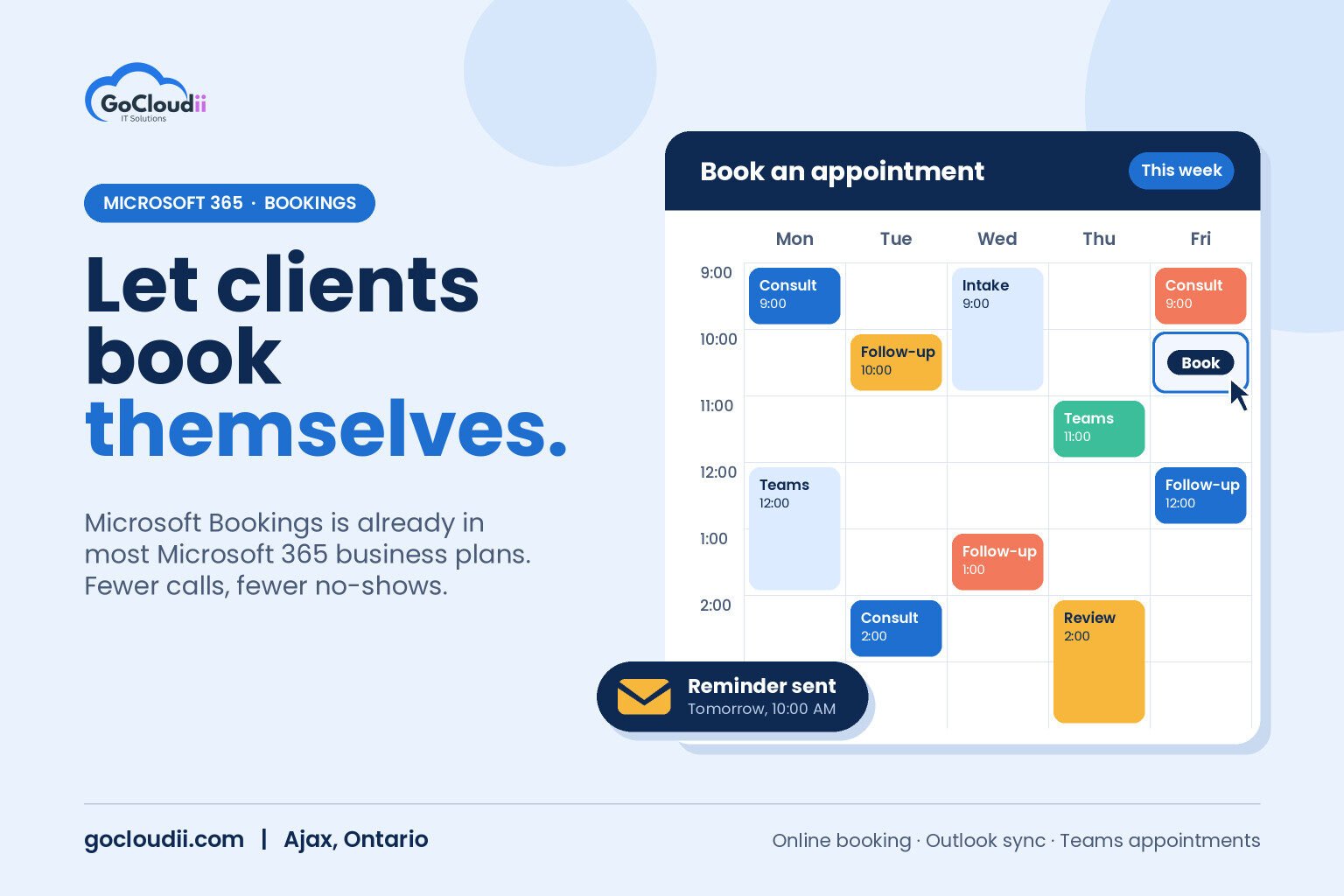
Phone tag is one of the quiet costs of running a service business. Clients call to book, staff check a calendar, someone calls back, and the appointment still ends up double-booked or forgotten. If your business already pays for Microsoft 365, you may have a scheduling tool sitting unused. Microsoft Bookings lets clients book appointments online, syncs with your team’s Outlook calendars and sends confirmations and reminders automatically. This guide explains how to use Microsoft Bookings for small business in Ontario, who it suits and how to set it up properly.
What is Microsoft Bookings?
Microsoft Bookings is an online appointment scheduling app included with Microsoft 365 business plans, including Business Basic, Business Standard and Business Premium. It gives you:
- A public booking page where clients choose a service, a staff member and an open time slot
- Calendar sync with each staff member’s Outlook calendar, so booked time and existing meetings stay aligned
- Automatic emails for confirmations, reminders and follow-ups
- Online meetings through Microsoft Teams for virtual appointments
- Staff and service settings such as appointment length, buffer time and business hours
Because it runs inside Microsoft 365, there is no separate login or extra subscription for most small businesses.
Who benefits from Microsoft Bookings in Ontario?
Bookings works well for any organization that schedules time with clients:
- Dental offices and clinics booking consultations or follow-ups (with care around what information is collected, covered below)
- Law firms and accounting firms offering initial consultations or tax appointments
- Non-profits scheduling volunteer shifts, intake calls or program sessions
- Schools and tutoring centres arranging parent-teacher meetings
- Consultants and service companies booking site visits, demos or discovery calls
If you already use a specialized practice management system with built-in scheduling, Bookings may not replace it. It is often a good fit for consultations, internal meetings or departments that do not use that system.
Microsoft Bookings for small business in Ontario: key benefits
Fewer phone calls and emails
Clients book at any hour from their phone or computer. Front-desk staff spend less time on scheduling and more time with the people in front of them.
Fewer no-shows
Automatic reminder emails help clients remember appointments. You can set when reminders go out and what they say.
One calendar of record
Bookings checks staff availability in Outlook, which reduces double-booking. Time off and existing meetings block booking slots automatically.
Easy virtual appointments
Each booking can include a Teams meeting link, which is useful for initial consultations, follow-ups or clients who cannot travel.
How to set up Microsoft Bookings
1. Plan your services
List the appointment types you offer, how long each one takes, any buffer time needed between appointments and which staff can deliver each service.
2. Create the booking page
In Bookings, create a shared booking page for your business. Add your business name, logo, address, hours and contact details so the page looks professional and matches your brand.
3. Add staff and set availability
Add each staff member and choose whether their Outlook calendar should block availability. Set working hours for each person, including part-time schedules.
4. Configure services
For each service, set the duration, buffer time, price display if relevant, and whether it is in person or online through Teams. Add custom questions only if you truly need the information.
5. Customize emails and reminders
Edit confirmation and reminder messages to include parking details, what to bring, cancellation policies and how to reach you.
6. Publish and share
Add the booking link to your website, email signatures, Google Business Profile and social media. Test the full booking journey from a client’s point of view before launch.
Privacy and security tips
A booking page is public, so treat it with the same care as the rest of your Microsoft 365 environment:
- Collect the minimum. Avoid asking for health details, case information or other sensitive data in booking questions. Gather that through your secure intake process instead.
- Control who can manage Bookings. Give admin access only to staff who need it, and protect those accounts with multi-factor authentication. Our guide to multi-factor authentication for small businesses explains how.
- Review data residency questions. If your sector has privacy obligations, such as healthcare under PHIPA, get advice on what can be stored and where. Our post on Microsoft 365 data residency in Canada is a good starting point.
- Watch for spam bookings. Review settings such as how far in advance clients can book and require basic contact details.
Common mistakes to avoid
- Publishing before staff calendars are accurate, which leads to bookings during holidays or meetings
- Offering too many services, which confuses clients
- Forgetting buffer time between appointments
- Not telling staff how bookings appear in their Outlook calendars
- Leaving default email text that does not match your business
Frequently asked questions
Is Microsoft Bookings included in my Microsoft 365 plan?
It is included in Microsoft 365 Business Basic, Business Standard and Business Premium. Your administrator may need to turn it on. Our comparison of Microsoft 365 Business Premium vs Standard explains what else each plan includes.
Can clients book without a Microsoft account?
Yes. Clients only need a web browser and an email address to book.
Can I use Bookings for internal meetings?
Yes. Many organizations use it for IT help sessions, HR check-ins or training slots, as well as client appointments.
Set up Microsoft Bookings with GoCloudii
GoCloudii helps businesses in Ajax, Durham Region and across the GTA get more value from the Microsoft 365 licences they already pay for. Our Microsoft 365 solutions cover Bookings setup, Teams, SharePoint and security settings, and our managed IT services and cybersecurity services keep everything protected. Contact us for a free consultation.