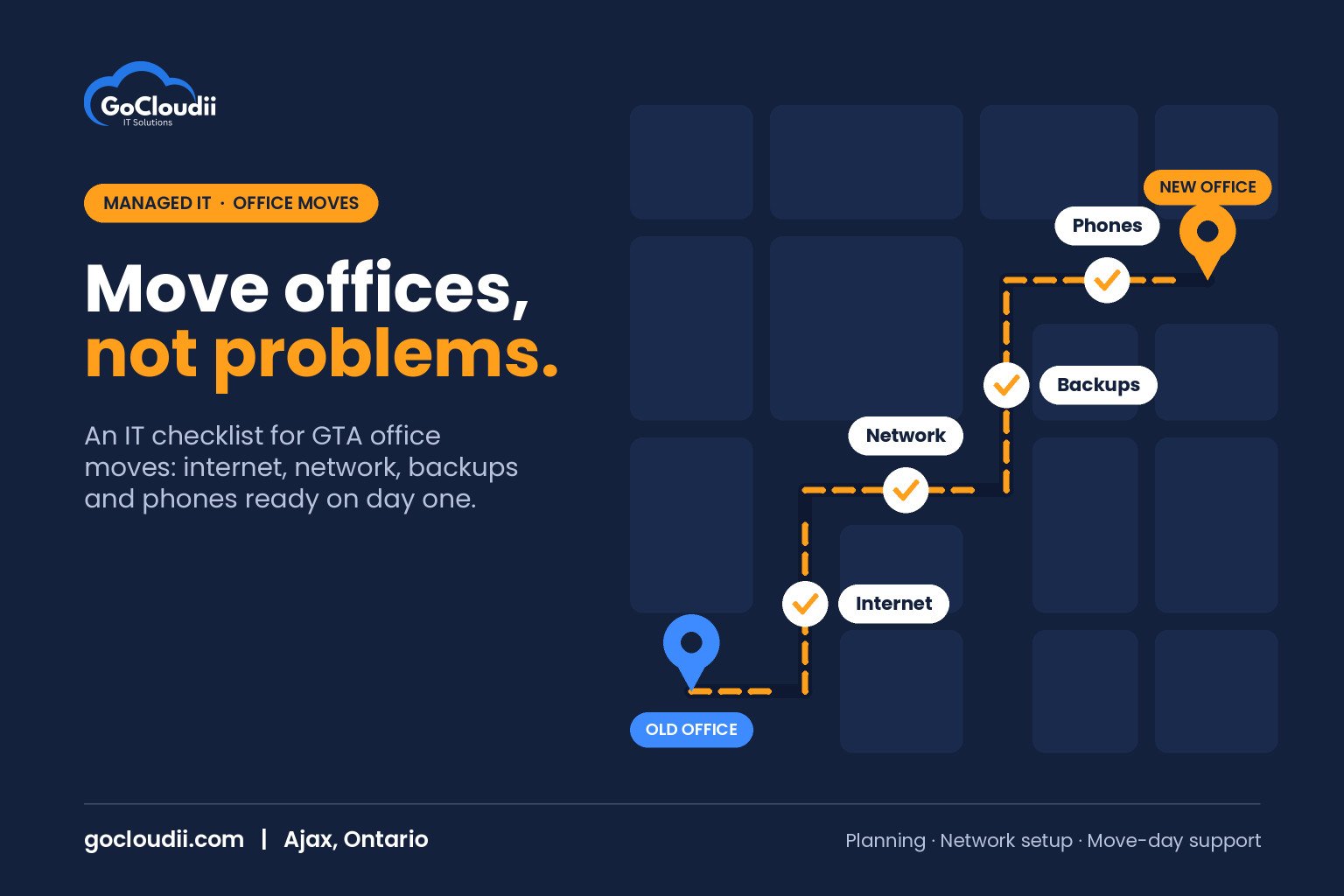
Moving offices is exciting, but the technology side is where moves often go wrong. Internet that is not ready on day one, phones that do not ring, printers that will not connect and a server that does not survive the truck ride can cost days of productivity. The good news is that most of these problems are avoidable with early planning. This office relocation IT checklist for GTA businesses walks through what to do before, during and after a move, so your team can open the doors at the new location and get straight to work.
Why IT needs its own moving plan
Furniture and boxes can be moved in a day. Technology depends on outside providers, building access, cabling and careful configuration. Internet service in particular can take weeks to install at a new address, depending on the provider and the building. Treating IT as its own project, with an owner and a timeline, keeps it from becoming a last-minute scramble.
Office relocation IT checklist for GTA businesses: 8 to 12 weeks out
Confirm internet service early
Contact internet providers as soon as the lease is signed. Ask what services are available at the new building, how long installation will take and whether the building needs new wiring. Consider a second internet connection from a different provider for backup if downtime would seriously affect your business.
Visit the new space with IT in mind
Walk the site with your IT provider. Look at:
- Where the network equipment will live and whether that room has power, ventilation and a lock
- Network cabling and wall jacks, and whether more are needed
- Wi-Fi coverage for meeting rooms, reception and work areas
- Power outlets for desks, printers and equipment
- Building rules for after-hours access and contractor work
Take inventory
List every device and service that will move: computers, monitors, docks, printers, phones, network equipment, any on-site server, security cameras and door access systems. A move is a good time to retire old equipment rather than pay to move it.
Plan your phone system
If you use a traditional phone system, check how numbers will move to the new address. If you are considering a cloud phone system, a move is a natural time to switch. Our guide to Microsoft Teams Phone explains one option.
4 to 6 weeks out
Order cabling and equipment
Book the cabling contractor and order any new switches, Wi-Fi access points, firewalls or desk equipment. Supply delays can happen, so order early.
Update your address everywhere
Make a list of services that need the new address: internet and phone providers, Microsoft 365 billing, domain registration, software licences, your Google Business Profile, your website and email signatures.
Review cloud readiness
A move is a good time to reduce dependence on an on-site server. Moving files to SharePoint and OneDrive means staff can keep working from home during the move. Our guide to file server to SharePoint migration explains the process.
Confirm backups
Before anything is unplugged, confirm a recent, tested backup of every important system. Equipment can be dropped or damaged in transit.
1 to 2 weeks out
Build and test the network
Install and configure network equipment at the new site before move day. Test internet, Wi-Fi and firewall settings so problems are found while the old office still works.
Label everything
Label each device and cable with its owner and destination desk. Take photos of how complex equipment is connected.
Communicate with staff
Tell staff what to pack, what IT will handle and what to expect on the first day. Ask them to save work to the cloud and take home anything they need to work remotely during the move.
Plan for downtime
Choose a move window, often a weekend, that limits disruption. Let clients know if phones or email may be briefly affected.
Move day
- Shut down equipment properly before unplugging
- Move servers and network gear carefully, ideally with your IT provider present
- Set up network equipment first, then desks, printers and phones
- Check that each workstation can sign in, print and access files
- Test phones, reception systems, door access and security cameras
The first week in the new office
Run a walk-through
Have someone visit each desk on the first morning to fix small issues quickly.
Check security settings
Make sure the firewall, Wi-Fi passwords and guest network are configured correctly. A move can leave default passwords or open ports behind. Our cybersecurity services can review your setup.
Dispose of old equipment securely
Wipe or destroy drives from computers, printers and servers you are retiring. Use a certified disposal service where needed.
Update documentation
Record the new network layout, equipment locations and provider contact details.
Frequently asked questions
How early should we start planning IT for an office move?
As early as possible, ideally as soon as you start looking at spaces. Internet installation and cabling often need the most lead time.
Can we keep working during the move?
Usually, yes. With files in Microsoft 365 and a cloud phone system, many staff can work from home while the office moves.
Should we move our server or replace it?
It depends on its age and what it runs. A move is a good time to review whether cloud services could replace it.
Make your office move easier with GoCloudii
GoCloudii helps businesses in Ajax, Durham Region and across the GTA plan and manage office moves. Our managed IT services cover planning, network setup, move-day support and follow-up, and our Microsoft 365 solutions help your team stay productive throughout. Contact us for a free consultation about your upcoming move.