For a medical or physiotherapy clinic, ransomware doesn’t just lock files. It can stop check-ins, hide patient charts, delay appointments and force staff back to paper on a busy morning. Clinics hold valuable personal health information, rely on systems being available all day, and often have small teams without a dedicated security person, which makes them attractive targets. The good news is that most ransomware attacks rely on the same few weaknesses, and a layered approach closes them. This guide explains practical ransomware protection for clinics in Ontario, how each layer works, and what to do if an attack gets through.
How ransomware gets into a clinic
Ransomware is malicious software that encrypts files and systems, then demands payment to unlock them. Many attackers also copy data before encrypting it and threaten to publish it. In small healthcare offices, the most common entry points are:
- Phishing emails with malicious attachments or links to fake Microsoft 365 sign-in pages
- Stolen or reused passwords, especially on accounts without multi-factor authentication
- Exposed remote access, such as remote desktop connections open to the internet
- Unpatched software on computers, servers, firewalls and remote access tools
- Compromised vendor accounts used to support practice software or equipment
Once inside, attackers often spend time looking around, disabling security tools and finding backups before they launch the encryption.
Ransomware protection for clinics in Ontario: a layered plan
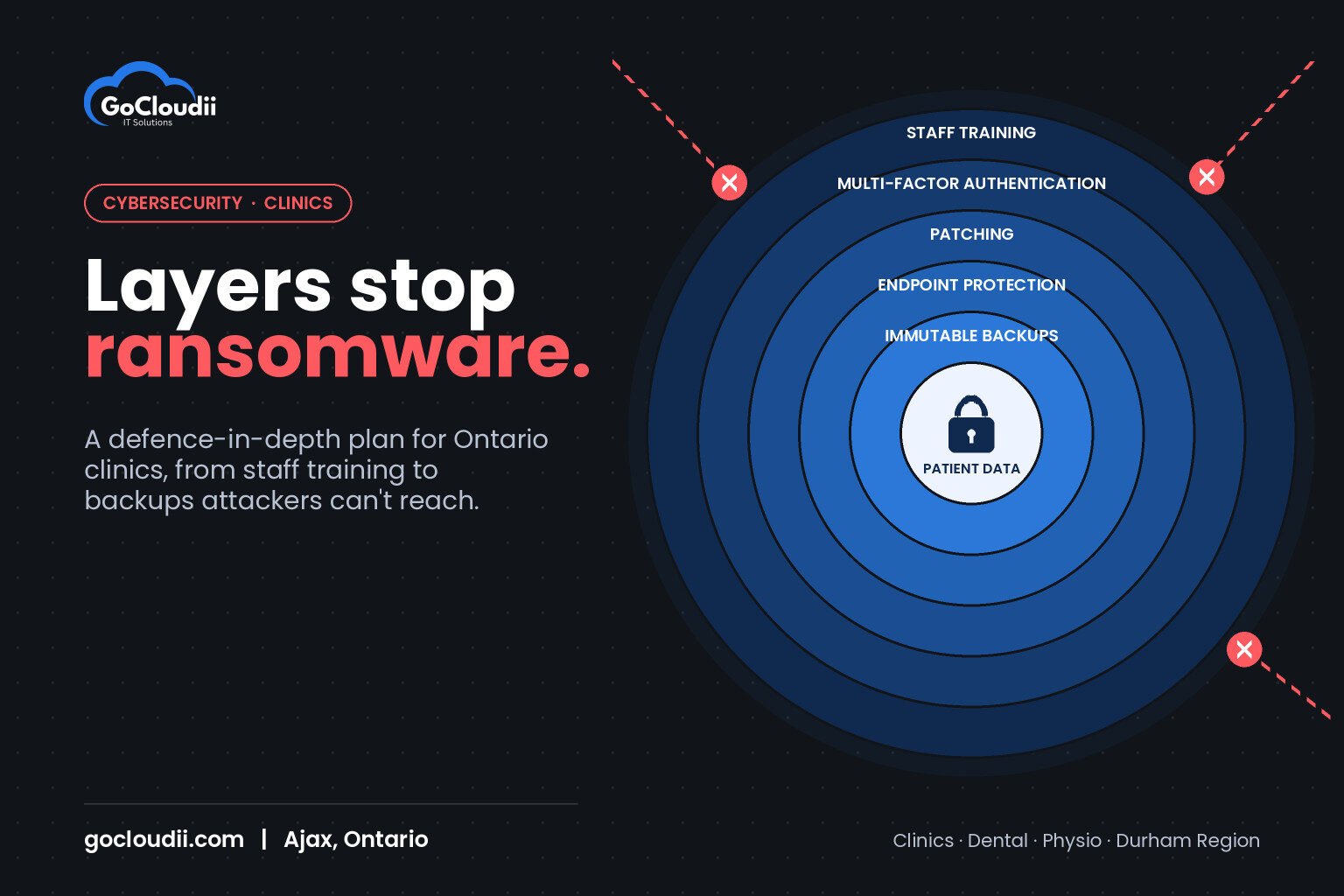
No single product stops every attack. Security professionals call the answer “defence in depth”: several layers, so if one fails the next one still protects you.
Layer 1: Staff awareness
Front-desk staff, practitioners and administrators open more email than anyone. Short, regular training helps them spot suspicious messages, fake invoices and unexpected sign-in prompts. Simulated phishing tests show where extra coaching is needed. Make it easy and blame-free to report a suspicious email quickly.
Layer 2: Multi-factor authentication
Multi-factor authentication (MFA) stops most attacks that rely on stolen passwords. Turn it on for Microsoft 365, remote access, your practice management system if it supports it, and every administrator account. Use an authenticator app or security keys instead of text-message codes where possible.
Layer 3: Patching and secure remote access
Keep Windows, macOS, browsers, firewalls and remote access tools up to date, and replace devices that no longer receive security updates. Never leave remote desktop open directly to the internet. Use a secure remote access method with MFA, and give vendors access only when they need it.
Layer 4: Endpoint protection with ransomware features
Basic antivirus is not enough on its own. Business-grade endpoint protection watches for suspicious behaviour, such as a program suddenly encrypting many files, and can stop it. Two common options for clinics are:
- Microsoft Defender for Business, included in Microsoft 365 Business Premium, which offers next-generation protection, attack surface reduction rules, controlled folder access and endpoint detection and response
- Bitdefender GravityZone, which offers layered anti-malware, ransomware mitigation and, in higher tiers, endpoint detection and response
The right choice depends on your licences and existing tools. What matters most is that protection is installed on every computer and server, centrally managed, and monitored so alerts are acted on.
Layer 5: Backups that attackers can’t reach
Backups are your last line of defence. A ransomware-ready backup plan includes:
- Daily backups of your practice management database, documents, imaging and Microsoft 365 data
- At least one copy offsite or in the cloud that can’t be changed or deleted from the clinic network, often called immutable or offline backups
- Separate credentials for the backup system, so a compromised staff account can’t reach it
- Regular test restores, so you know how long recovery actually takes
Protecting patient information under PHIPA
Ontario clinics that hold personal health information are health information custodians under the Personal Health Information Protection Act (PHIPA). Custodians must take reasonable steps to protect that information and must notify affected individuals, and in certain cases the Information and Privacy Commissioner of Ontario, when information is stolen, lost or accessed without authorization. A ransomware attack that encrypts or copies patient records can trigger these duties, so your incident plan should include your privacy officer from the start.
What to do if ransomware hits your clinic
Fast, calm action limits the damage:
- Disconnect affected devices from the network, but don’t turn them off, as that can destroy evidence.
- Call your IT provider right away to contain the attack and protect backups.
- Notify your cyber insurer before making decisions, as many policies require it.
- Involve your privacy officer to assess PHIPA notification duties.
- Report the incident to police and to the Canadian Centre for Cyber Security.
- Restore from clean backups once the systems are confirmed safe.
The Canadian Centre for Cyber Security publishes free ransomware guidance for organizations that is worth reviewing as you build your plan.
Frequently asked questions
Should a clinic pay the ransom?
Authorities generally advise against paying. Payment doesn’t guarantee your data will be returned or deleted by the attackers, and it funds further attacks. Discuss any decision with your insurer, legal adviser and IT provider.
Is Microsoft 365 Business Premium enough to protect a clinic from ransomware?
It includes strong tools, such as Microsoft Defender for Business and Conditional Access, but they need to be configured and monitored. You still need separate backups, patching and staff training.
How often should clinics test their backups?
At least every few months, and after any major change to your systems. A test restore is the only way to confirm a backup will work when you need it.
Protect your clinic with GoCloudii
GoCloudii is a managed IT provider based in Ajax, helping medical clinics, dental offices, physiotherapy practices and other healthcare offices across Durham Region and the GTA defend against ransomware. Our cybersecurity services cover endpoint protection, monitoring and training, our Microsoft 365 solutions secure accounts with MFA and Conditional Access, and our managed IT services keep systems patched and backups tested. Contact us to review your clinic’s ransomware protection.