Every business eventually has a bad day with technology. A laptop is stolen, a server drive fails, a storm knocks out power, or ransomware locks every file on the network. What separates a minor inconvenience from a crisis is whether you can get your data and systems back quickly. This guide explains backup and disaster recovery for small businesses in Ontario: what a good plan includes, how to choose recovery targets and how to make sure your backups actually work when you need them.
Backup vs disaster recovery: what is the difference?
The two terms are often used together, but they mean different things:
- Backup is a copy of your data stored somewhere safe, so you can restore files, emails or databases if the originals are lost or damaged.
- Disaster recovery is the plan and tools for getting your whole operation running again after a major incident, including systems, applications, devices and people.
A business can have backups and still struggle to recover if nobody knows how to restore them, how long it will take or what to do first.
Common risks for Ontario businesses
Disasters are not only fires and floods. The most common causes of data loss and downtime include:
- Hardware failure, such as a failed server or laptop drive
- Ransomware and other cyberattacks that encrypt or delete data
- Human error, such as deleted files or overwritten documents
- Power outages and severe weather, including winter storms
- Theft or loss of laptops and phones
- Problems at a key supplier, such as an internet or software provider
Our post on what downtime costs a small business explains why even a few hours offline matters.
Backup and disaster recovery for small businesses in Ontario: key building blocks
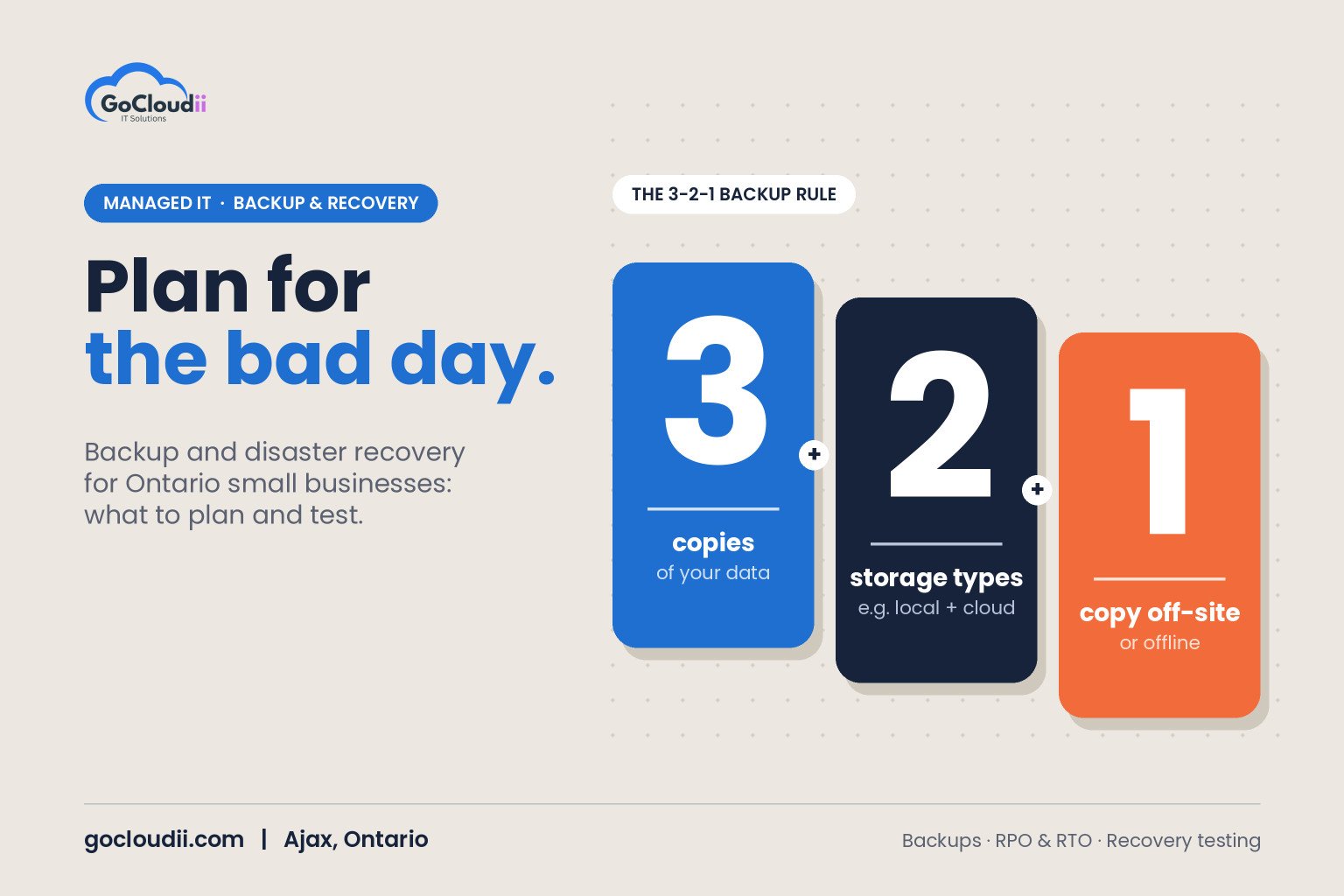
Follow the 3-2-1 rule
A widely recommended approach is to keep at least three copies of important data, on two different types of storage, with one copy off-site. Many businesses now add an immutable or offline copy that cannot be changed or deleted by ransomware.
Back up cloud services too
Microsoft 365 keeps your services running, but it is not a complete backup of your email, OneDrive and SharePoint data. A separate cloud-to-cloud backup protects against deletion, ransomware and retention gaps. Our guide on why Microsoft 365 backup is important covers this in detail.
Protect line-of-business data
Practice management, accounting, dental imaging, CRM and other business systems often hold your most valuable data. Confirm how each one is backed up, whether it runs on your own server or in the cloud.
Encrypt and secure backups
Backups should be encrypted and protected with strong access controls and multi-factor authentication. Attackers increasingly target backups first, so treat backup systems as high-value assets. Our ransomware protection plan for Ontario clinics explains how backups fit into a layered defence.
Set your recovery targets
Two simple measures help you plan:
Recovery point objective (RPO)
How much data can you afford to lose? If your RPO is four hours, backups need to run at least every four hours. Busy offices that enter data all day often need more frequent backups than a business that updates records once a week.
Recovery time objective (RTO)
How long can you be without a system before it seriously hurts the business? A clinic that cannot see its schedule may need recovery within hours, while an archive drive might wait several days.
Set RPO and RTO for each important system, then choose backup tools and schedules that meet them.
Write a simple disaster recovery plan
A plan does not need to be long, but it should be written down and easy to find, even if your main systems are offline. Include:
- Key contacts: your IT provider, internet provider, software vendors and insurer
- Critical systems: what must come back first, and in what order
- Recovery steps: how to restore data and where backups are stored
- Communication: how you will update staff, clients and partners
- Temporary workarounds: working from home, using laptops on mobile hotspots or switching to paper processes for a short time
- Roles: who makes decisions and who carries out each task
If you have cyber insurance, check whether your policy requires specific steps or approved vendors during an incident.
Test your backups regularly
A backup that has never been tested is a hope, not a plan. Schedule regular test restores of files, mailboxes and full systems. Check that:
- Backups are completing successfully and alerts are reviewed
- Restored files open and are complete
- Recovery fits within your RTO
- Staff know their roles
Update the plan after every test and whenever your systems change, such as after an office move or new software rollout.
Frequently asked questions
How often should we back up?
It depends on how much data you can afford to lose. Many businesses back up critical systems at least daily, and more often for systems that change throughout the day.
Is cloud storage like OneDrive a backup?
Not on its own. Sync services copy deletions and changes, including ransomware encryption. A separate backup with version history and retention is still needed.
Do we need a disaster recovery plan if we are fully in the cloud?
Yes. Cloud services can still be affected by account compromise, accidental deletion or outages, and your team still needs a plan for devices, internet access and communication.
Protect your business with GoCloudii
GoCloudii helps businesses in Ajax, Durham Region and across the GTA build backup and recovery plans they can rely on. Our managed IT services include daily cloud backup and 24/7 monitoring, our cybersecurity services help protect against ransomware, and our Microsoft 365 solutions keep your cloud data organized. Contact us for a free consultation.