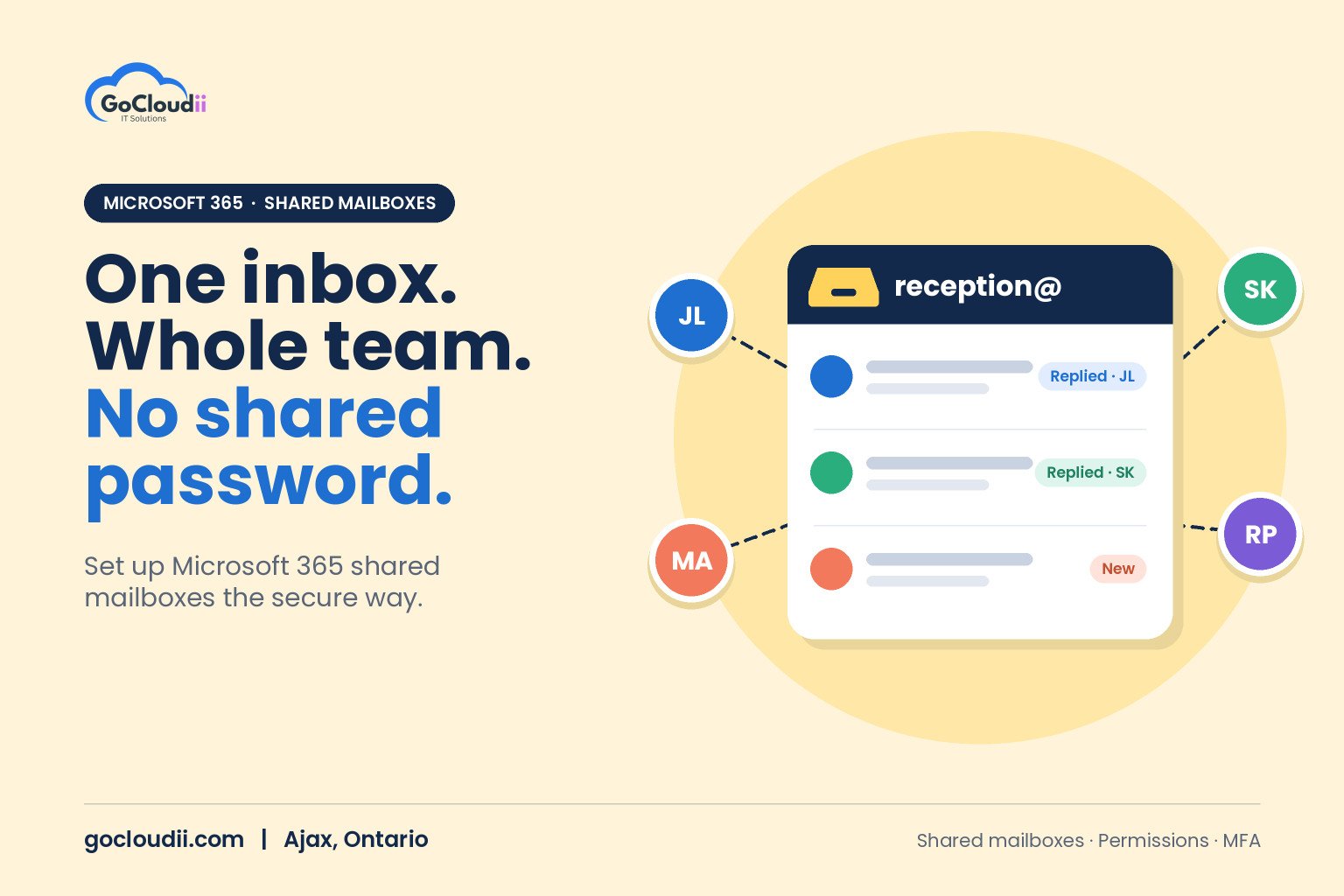
Many small businesses still run their front desk or accounts inbox the old way: one shared password that everyone knows. It works until someone leaves, a password leaks or nobody can tell who replied to a client. Microsoft 365 has a better option built in. This guide explains how a Microsoft 365 shared mailbox works for Ontario businesses, when to use it instead of a distribution list or Microsoft 365 group, and how to set it up securely.
What is a shared mailbox?
A shared mailbox is an inbox that several people can read and send from, such as info@, reception@, accounts@ or support@. Each team member opens it with their own Microsoft 365 account. Nobody needs to know a shared password.
Key features:
- Shared inbox and sent items, so everyone sees what has been answered
- A shared calendar and contacts for the team
- Send As or Send on Behalf permissions, so replies come from the shared address
- No separate licence in most cases. A shared mailbox can store up to 50 GB without its own licence. Larger mailboxes, an online archive or litigation hold require a licence.
Microsoft 365 shared mailbox for Ontario businesses: common uses
Shared mailboxes suit any address that belongs to a role rather than a person:
- Dental offices and clinics: reception, appointments or billing inboxes
- Law firms: a general enquiries address or a shared mailbox for a practice group
- Accounting firms: a documents or tax season inbox
- Non-profits: volunteer, donations or program enquiries
- Schools: admissions or office inboxes
Because access is tied to each person’s account, you can add or remove staff without changing any passwords.
Shared mailbox vs distribution list vs Microsoft 365 group
These three options are often confused. Here is how they differ.
Shared mailbox
Best when a team needs to work from one inbox, track replies and send from a common address. Messages live in one place.
Distribution list
A distribution list simply forwards a copy of each email to every member’s own inbox. There is no shared inbox or record of who replied. It works for announcements, such as an allstaff@ address, but not for client service.
Microsoft 365 group
A Microsoft 365 group includes a shared inbox plus a shared calendar, a SharePoint site for files and other collaboration tools. Groups can also be connected to Microsoft Teams. They suit project teams that need more than email.
If your team mainly needs a common inbox, a shared mailbox is usually the simplest choice.
How to set up a shared mailbox
1. Create the mailbox
An administrator creates the shared mailbox in the Microsoft 365 admin centre or the Exchange admin centre, choosing a display name and email address.
2. Add members and permissions
Give each team member the right level of access:
- Full Access lets them open and manage the mailbox
- Send As lets them send email that appears to come directly from the shared address
- Send on Behalf shows that the message was sent by the person on behalf of the shared mailbox
3. Open it in Outlook
In many cases, the shared mailbox appears automatically in Outlook for users with Full Access. It can also be added manually in Outlook on the web and on mobile devices.
4. Agree on a workflow
Decide how the team will handle messages. Categories, flags or moving completed emails to folders help everyone see what is done. Some teams assign a person each day to watch the inbox.
Security best practices
A shared mailbox is a convenient target if it is not configured carefully:
- Block direct sign-in. Each shared mailbox has an underlying account. Block sign-in so it can only be reached through members’ own accounts.
- Protect members with MFA. Anyone with access to a shared mailbox should use multi-factor authentication. Our guide to multi-factor authentication for small businesses explains how.
- Review access regularly. Remove people who change roles or leave. Our Microsoft 365 onboarding and offboarding checklist includes this step.
- Back it up. Shared mailboxes often hold important client history. Our post on why Microsoft 365 backup is important explains the risks.
- Train staff on phishing. Generic inboxes such as info@ receive a lot of scam email. Our cybersecurity services include email protection.
Converting a former employee’s mailbox
When someone leaves, their mailbox can often be converted to a shared mailbox so a manager can keep access to past emails. After conversion, the licence can usually be removed, as long as the mailbox stays within the 50 GB limit and does not need an archive or litigation hold. Check retention requirements before removing anything.
Frequently asked questions
Do we need to buy a licence for a shared mailbox?
Usually not, if it stays under 50 GB and does not need an online archive or litigation hold. Users who access it still need their own Microsoft 365 licences.
Can we use a shared mailbox on our phones?
Yes. Shared mailboxes can be added in the Outlook mobile app for users with Full Access.
Should we just share one password instead?
No. Shared passwords cannot be tied to MFA for each person, make it hard to remove access and leave no record of who did what.
Get your Microsoft 365 email organized with GoCloudii
GoCloudii helps businesses in Ajax, Durham Region and across the GTA set up shared mailboxes, groups and permissions properly. Our Microsoft 365 solutions cover email, Teams and SharePoint, and our managed IT services keep everything running day to day. Contact us for a free consultation.