Windows 10 reached end of support on October 14, 2025. A year later, many dental offices, clinics, law firms and non-profits across the GTA still have a few Windows 10 computers at the front desk, in an exam room or under a bookkeeper’s desk. If that sounds like your office, this month is a good time to take stock, because the first year of Microsoft’s paid Extended Security Updates (ESU) has just ended.
This guide explains what Windows 10 end of support means for Ontario businesses today, what your options are, and how a managed IT provider can get every machine onto a supported, secure footing without disrupting patients or clients.
What Windows 10 end of support means for GTA offices
When Microsoft ends support for a version of Windows, it stops releasing free security patches, bug fixes and technical help for it. The computer keeps turning on and your programs keep opening, which is exactly why the risk is easy to ignore.
Without security updates, every newly discovered Windows 10 vulnerability stays open on that machine. Attackers know that small offices are slower to replace hardware, so unpatched Windows 10 devices are an attractive way in. For offices covered by PHIPA or PIPEDA, running an unsupported operating system on a computer that touches patient or client records is also hard to defend as a “reasonable safeguard” after a breach.
Where Extended Security Updates stand in October 2026
Microsoft offered a paid ESU program as a bridge for organizations that could not upgrade in time:
- Consumer ESU provided one year of updates and ended in October 2026.
- Business ESU is sold per device for up to three years, through October 2028.
- The price for businesses doubles each year, so year two costs twice as much as year one, and year three twice as much again.
- ESU only covers critical and important security fixes. It does not add features or general technical support.
If your office bought year one, those devices are now uncovered unless year two was purchased and applied. If you never enrolled, those PCs have gone a full year without security patches.
Your three options for remaining Windows 10 devices
1. Upgrade eligible PCs to Windows 11
Many computers bought in the last five or six years can run Windows 11 for free. Windows 11 requires a supported processor, TPM 2.0 and Secure Boot. You can check a device with Microsoft’s PC Health Check app, or your IT provider can check every machine at once from a management console.
Before upgrading, confirm that your practice management, dental imaging, EMR or legal software and any connected devices (scanners, label printers, X-ray sensors) are supported on Windows 11. Most vendors support it now, but older drivers are the most common surprise.
2. Replace older hardware
Computers that don’t meet the Windows 11 requirements are usually old enough that replacement makes more sense than paying for ESU. New business-grade PCs also bring faster storage, better battery life and built-in security features. Spreading replacements over a few months keeps costs predictable.
3. Buy ESU year two as a short bridge
ESU can make sense for a small number of machines tied to a specialized application or piece of equipment that isn’t ready for Windows 11. Treat it as a short-term bridge with a firm replacement date, not a long-term plan, especially since the price keeps rising.
How managed IT services make the move painless
A Windows 10 to Windows 11 project is a good example of where managed IT services earn their keep. A managed IT provider typically handles:
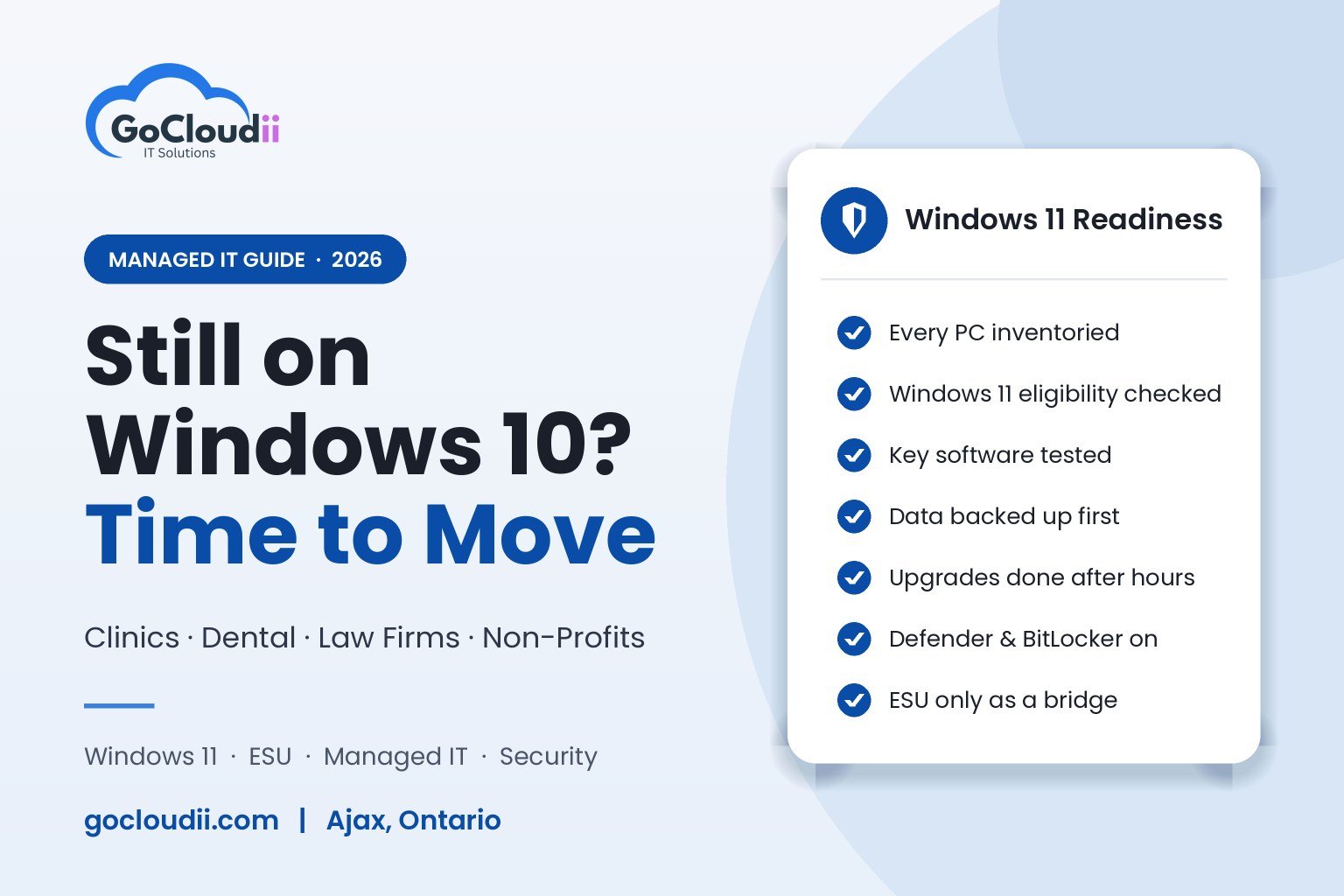
- An inventory of every device, including the forgotten reception PC and the laptop in the boardroom.
- Compatibility checks for Windows 11 hardware requirements and line-of-business software.
- After-hours upgrades so clinics and law firms aren’t disrupted during appointments or court deadlines.
- Data migration and backups before any machine is upgraded or replaced.
- Security baselines such as BitLocker encryption, Microsoft Defender, multi-factor authentication and automatic patching applied to every new device.
- Microsoft Intune enrolment, so future updates and policies are managed centrally.
Our managed IT services team plans and runs these upgrades for offices across Ajax, Pickering, Whitby, Oshawa, Toronto and the wider GTA.
A quick Windows 10 checklist for your office
- List every computer and note which ones still run Windows 10.
- Check which of those can upgrade to Windows 11.
- Confirm your key software and devices support Windows 11.
- Decide which machines to upgrade, replace or temporarily cover with ESU.
- Back up data before any change.
- Make sure Microsoft Defender, encryption and MFA are in place on every device.
- Set a date by which no Windows 10 computer touches client or patient data.
Frequently asked questions
Can I still use Windows 10 after end of support?
Yes, the computer will keep working. But it no longer receives free security updates, so each new vulnerability stays unpatched. For offices that handle health, legal or financial information, that is a real risk.
Is Windows 10 ESU worth it for a small business?
It can be for a few devices that can’t upgrade yet because of specialized software or equipment. For most offices, upgrading or replacing the PC is better value, especially as ESU pricing doubles each year.
How long does a Windows 11 upgrade take?
An in-place upgrade on a compatible PC usually takes an hour or two. Planning, testing software and moving data take longer, which is why we schedule the work outside office hours.
Does Microsoft 365 still work on Windows 10?
Microsoft 365 apps no longer receive full support on Windows 10, and Microsoft recommends moving to Windows 11. Our Microsoft 365 solutions team can help you plan both together.
Get your office off Windows 10
Not sure how many Windows 10 machines you still have, or which ones can upgrade? GoCloudii is a managed IT provider based in Ajax, supporting clinics, dental offices, law firms, non-profits and schools across Durham Region and the GTA. We’ll take inventory, plan the upgrade and lock down every device with our cybersecurity services. Contact us to book a Windows 11 readiness review.