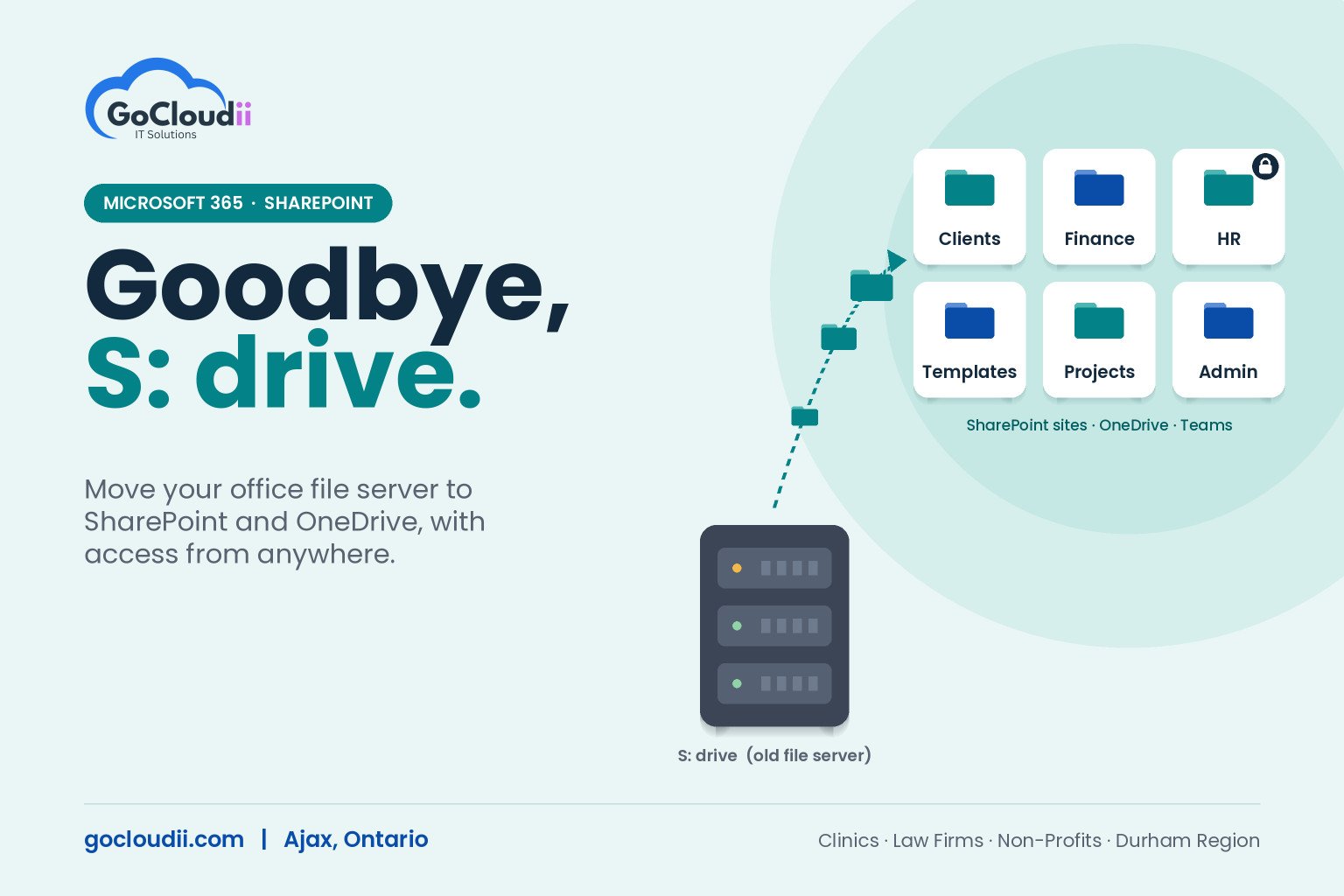
Many offices across the GTA still keep their files on a server in a back room: the shared S: drive that everyone maps when they log in. It worked well when everyone sat at the same desks, but today staff work from home, from a second location and from their phones. The server needs maintenance, VPN connections are slow, and backups are only as good as the last time someone checked them. Moving your file server to SharePoint and OneDrive in Microsoft 365 gives your team secure access from anywhere, without a server to maintain. This guide explains how a file server to SharePoint migration works for Ontario small businesses, what to plan before you move, and the mistakes to avoid.
Why move your file server to SharePoint?
If your office already pays for Microsoft 365 Business Basic, Standard or Premium, SharePoint and OneDrive are already included in your licences. Moving your files there brings several benefits:
- Access from anywhere. Staff can open files from the office, home or a client site without a VPN.
- Real co-authoring. Several people can edit the same Word or Excel file at the same time instead of fighting over who has it open.
- Version history. Previous versions of each file are kept automatically, so an accidental overwrite can be undone in seconds.
- No server to replace. You avoid the cost of new server hardware, Windows Server licences, and the power and maintenance that come with them.
- Built-in security. Access is controlled by Microsoft 365 accounts with multi-factor authentication, and files can be shared securely with clients without email attachments.
SharePoint vs OneDrive: where should files go?
A common question during a migration is what belongs where. A simple rule works for most offices:
- OneDrive is for each person’s own working files, the things that would have lived in their “My Documents” folder.
- SharePoint is for shared team and company files, the things that lived on the S: drive.
- Microsoft Teams uses SharePoint behind the scenes, so files shared in a Teams channel are stored in that team’s SharePoint site.
Getting this structure right at the start makes everything else easier.
How to plan a file server to SharePoint migration
1. Clean up before you move
Most file servers have years of duplicate files, old projects and folders nobody remembers creating. Moving all of it just moves the mess. Before migration, archive or delete what is no longer needed, and confirm any records your organization must keep for legal or regulatory reasons.
2. Design your sites and libraries
Don’t recreate one giant shared drive as a single SharePoint library. Instead, split content into a few sites or libraries based on who needs access, such as:
- Clients or matters
- Finance and billing
- HR and confidential staff records
- Templates and company forms
- Operations or administration
Smaller libraries are easier to secure, faster to sync, and simpler for staff to navigate.
3. Rethink permissions
File servers often build up complicated folder permissions over the years. A migration is the best time to simplify. Give access at the site or library level using groups, such as “Finance team” or “Partners”, instead of setting permissions on individual folders. This makes access easier to manage and audit, which matters for clinics and law firms handling confidential information.
4. Check for problem files
SharePoint and OneDrive have limits that a Windows file server doesn’t, including very long file paths and some special characters in file names. Very large libraries can also slow down syncing on staff computers. A pre-migration scan identifies these issues so they can be fixed before the move, not after.
5. Choose the right migration tool
Microsoft provides free tools for moving file shares into Microsoft 365, including the SharePoint Migration Tool and Migration Manager in the SharePoint admin centre. These tools copy files while keeping details such as modified dates, and they can run incremental passes so the final cut-over only moves recent changes.
6. Plan the cut-over and train staff
Schedule the final move for an evening or weekend, then switch the old shares to read-only so nobody keeps saving files in the old location. Short training on opening files, syncing libraries to File Explorer, co-authoring and sharing makes the change much smoother for staff.
Common migration mistakes to avoid
- Syncing everything to every computer. Staff should only sync the libraries they actually use.
- Copying old permissions exactly. Messy permissions on the server become messy permissions in the cloud.
- Skipping the clean-up. Migrating years of clutter wastes time and storage.
- Forgetting backups. Microsoft 365 keeps your files available, but a separate Microsoft 365 backup protects against accidental deletion, ransomware and long-term retention needs.
- Turning off the server too soon. Keep the old server read-only for a short period until everyone confirms their files are in the right place.
Keeping your files secure after the move
Once your files are in SharePoint, security depends on your Microsoft 365 setup. Turn on multi-factor authentication for every user, review external sharing settings so files can only be shared the way your organization intends, and consider sensitivity labels for confidential client or patient information. Our cybersecurity services can review these settings as part of your migration.
Frequently asked questions
How long does a file server to SharePoint migration take?
It depends on how much data you have, how clean it is and your internet speed. A small office can often move in a few weeks, including planning, clean-up, migration passes and training.
Can we keep using mapped drives after moving to SharePoint?
Staff can sync SharePoint libraries to File Explorer with the OneDrive app, so files appear in a familiar folder view. Traditional mapped drive letters are not the recommended way to use SharePoint.
Do we still need a backup after moving to Microsoft 365?
Yes. Microsoft keeps the service running, but you are responsible for your data. A dedicated Microsoft 365 backup protects against deletion, ransomware and retention gaps.
Plan your move with GoCloudii
GoCloudii is a managed IT provider based in Ajax, helping clinics, dental offices, law firms, non-profits and schools across Durham Region and the GTA move from ageing file servers to Microsoft 365. Our Microsoft 365 solutions team handles planning, migration and training, and our managed IT services keep everything supported afterwards. Contact us to plan your file server to SharePoint migration.